
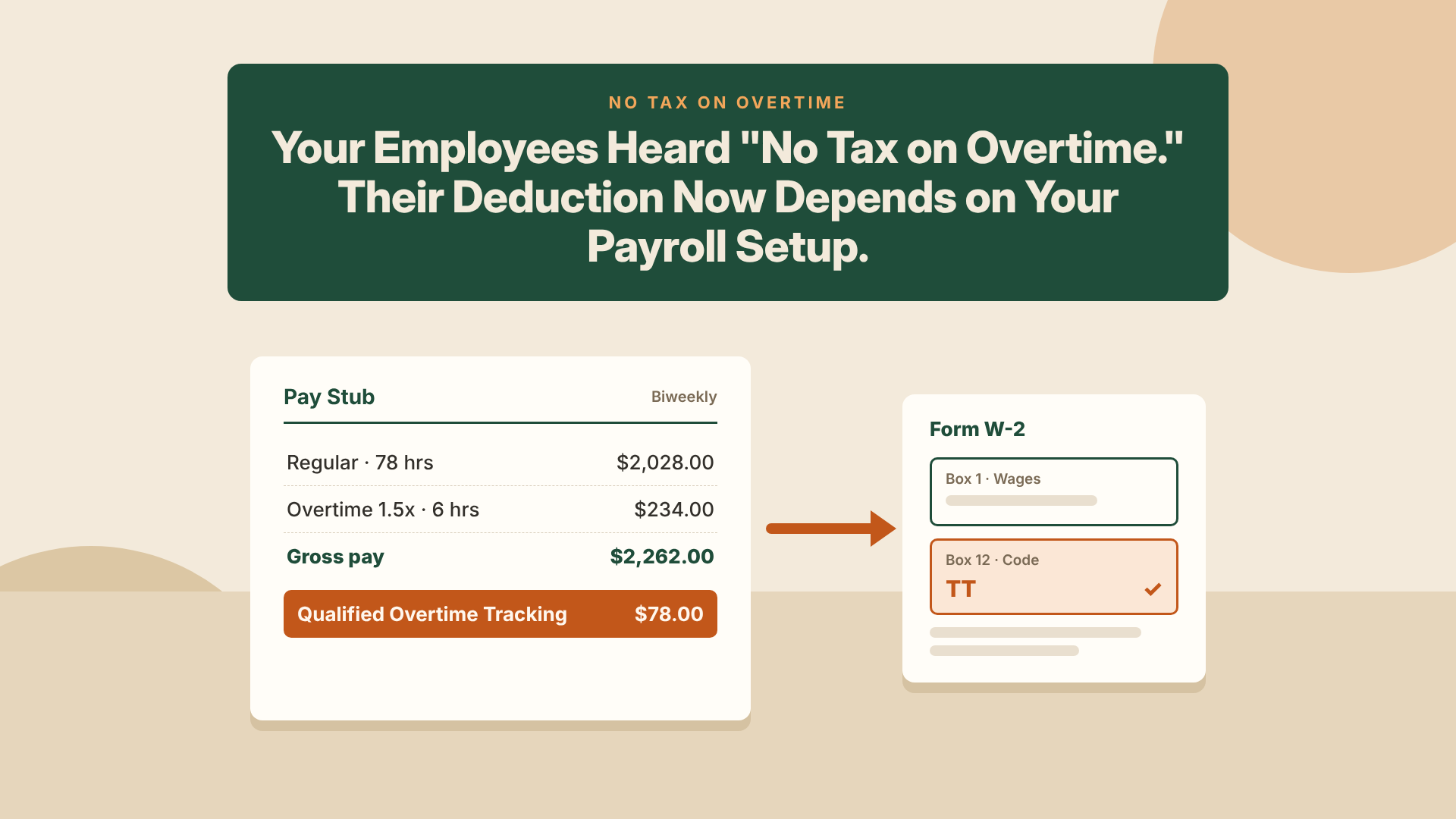
Your Employees Heard “No Tax on Overtime.” Their Deduction Now Depends on Your Payroll Setup.
Your overtime crew has been hearing about no tax on overtime for more than a year, and some of them expected bigger paychecks because of it. Their paychecks haven’t changed, and they aren’t going to. Overtime is still taxed when it’s paid. What the law created is an income tax deduction employees claim on their own returns, and for 2026 the IRS limits that deduction to the overtime figure their employer reports on the W-2. That adds a new number to your year-end work, and your payroll system has to track it paycheck by paycheck, one workweek at a time.
QuickBooks Payroll now includes a tracking item for this. Whether it’s carrying the right amount depends on how overtime is set up in your file. January is a hard time to find out it isn’t: W-2s for 2026 are due February 1, 2027, and an error in the overtime box means a corrected W-2 for every employee it touches.
Key Takeaways
- No tax on overtime is a deduction employees take on their tax returns. Withholding on overtime pay stays the same.
- Starting with 2026, employers report qualified overtime on Form W-2, box 12, code TT, and employees can generally deduct only the amount you report there.
- Only the federal “half” of time-and-a-half counts, figured one workweek at a time and never averaged across a pay period.
- QuickBooks Payroll calculates the amount automatically for standard overtime setups. Custom pay types, multiple overtime rates, and state overtime rules need manual entry.
- There’s still time to correct 2026 year-to-date totals before W-2s are due, and every total you correct now is one less corrected W-2 later.
What No Tax on Overtime Asks of Employers
The rule rests on the federal Fair Labor Standards Act (FLSA). Nonexempt employees who work more than 40 hours in a workweek earn at least time-and-a-half for the extra hours. The “time” part of that pay is ordinary wages. The extra “half” is what the IRS calls qualified overtime compensation, and it’s the only part the deduction covers.
Your job at year-end is to report the total of that half in box 12 of each employee’s W-2, using code TT. A few details decide what goes into that total:
- It’s figured per workweek. An employee who works 46 hours one week and 38 the next has six overtime hours for that pay period, even though the two weeks add up to only four hours over 80.
- Only the federal amount counts. Double time, or overtime a state requires beyond the federal rule (California’s daily overtime is the common example), counts only to the extent the FLSA would have required it.
- Exempt employees are outside it. Salaried exempt employees have no qualified overtime, even if you choose to pay them extra for long weeks.
- Contractors generally are too. Workers paid on a 1099 usually fall outside the rule. If you pay contractors, the 1099 side has its own changes this year, covered in The 1099 Rules Changed for 2026.
- Report the full amount. An employee whose overtime premium adds up to more than the $12,500 deduction cap still gets the whole figure on the W-2. The cap limits what the employee can deduct on their return. It doesn’t change what you report.
The stakes went up this year. For 2025, employers weren’t required to report anything separately, and employees could work from their pay stubs. That relief has ended. Under the IRS’s current guidance (FS-2026-13), employees generally can claim the deduction only for the amount in box 12, code TT, and they can’t file a substitute W-2 to claim more than you reported. If your number comes up short, the fix runs through you: a Form W-2c filed with the Social Security Administration and given to the employee, with possible penalties for incorrect forms that are reduced when corrections are made promptly.
One Paycheck, Worked Through
The following is an example to illustrate how this works in practice — not a specific client case study.
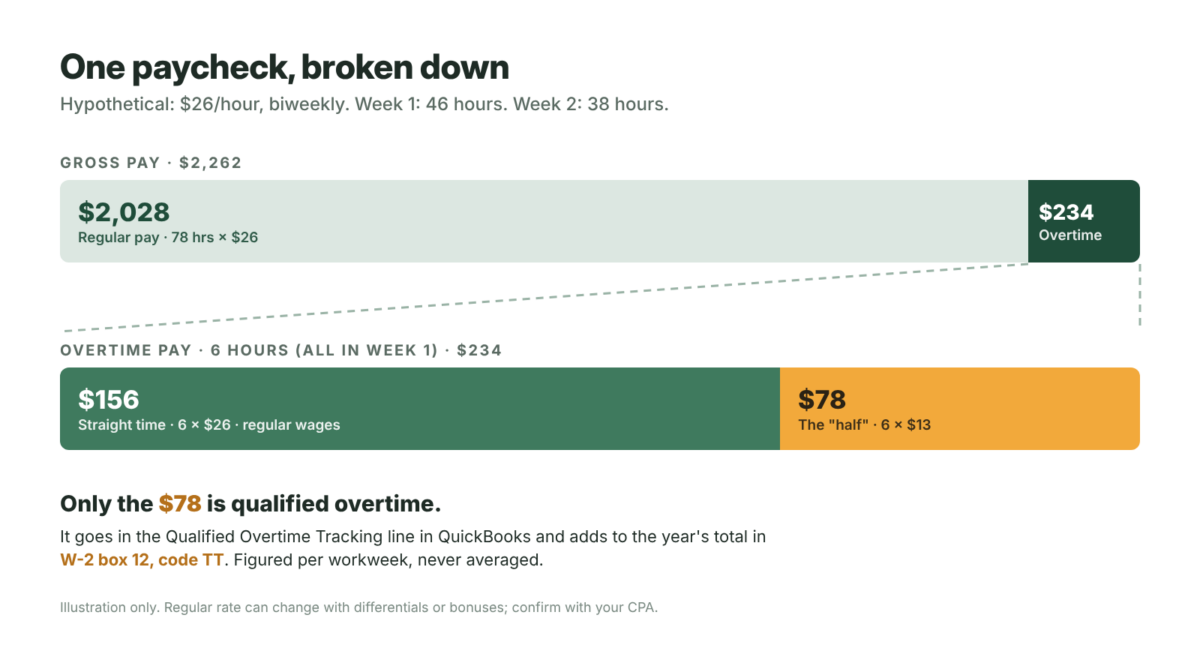
Jordan is an HVAC technician paid $26 an hour on a biweekly payroll. In the first week of the pay period he works 46 hours. In the second, he works 38.
- Regular hours: 78 × $26 = $2,028
- Overtime hours (all in week one): 6 × $39 = $234
- Gross pay: $2,262
Of the $234 in overtime pay, $156 is straight time (6 × $26), reported as ordinary wages like any other hour. The remaining $78 (6 × $13) is the half. That $78 is Jordan’s qualified overtime for this paycheck, and it’s what the Qualified Overtime Tracking line in QuickBooks should show.
Now picture someone rebuilding that figure in January from pay-period totals. Eighty-four hours in a two-week period looks like four hours over 80, and four hours at $13 is $52. Payroll paid Jordan correctly for six overtime hours, but the reconstructed amount is $26 short on this one check. Repeat that across a year of paychecks and a crew of technicians, and the W-2s go out wrong for everyone.
The $13 figure assumes Jordan’s regular rate is simply his hourly rate. Shift differentials, nondiscretionary bonuses, and some incentive pay raise the FLSA regular rate, which raises the half. If your pay plans include any of those, ask your CPA or payroll advisor to confirm the calculation before you rely on the automatic figure.
Setting Up QuickBooks Payroll for No Tax on Overtime
Intuit’s help article, Impact of the No Tax on Overtime provision to QuickBooks Payroll, is the reference for both versions of QuickBooks Payroll. The setup differs depending on which one you run.
QuickBooks Workforce (QuickBooks Online Payroll)
Each employee who’s subject to overtime rules needs the Qualified Overtime Tracking pay type on their profile. New employees get it automatically when Overtime Pay is added, but employees who were already on payroll may not have it. You add it in the employee’s pay types, choosing Qualified Overtime Tracking from the list. It’s a tracking item only, so it doesn’t post to your chart of accounts and doesn’t change net pay or taxes.
The amount calculates automatically when you pay overtime with QuickBooks’ built-in Overtime 1.5x and Double Time pay types. If you haven’t looked at what else your Workforce tier includes, our overview of QuickBooks Workforce covers it.
QuickBooks Desktop Payroll
Once QuickBooks and your tax tables are updated, a setup wizard appears the first time you run payroll or open Payroll Setup. It adds the no tax on overtime tracking item and asks whether you pay overtime only after 40 hours in a week. Answer yes, and QuickBooks fills in the amount automatically. Answer no, and you’ll calculate and enter it yourself on each paycheck. If you answered the wizard the wrong way, you can change it under Edit > Preferences > Payroll & Employees > Company Preferences.
Because the Desktop item is set up as a company contribution, Intuit recommends pointing its liability and expense accounts to the same account so it has no effect on your books. If the item is showing up as a payroll liability or extra payroll expense, that account mapping is the first thing to check.
Where manual entry comes in
Intuit’s article lists the setups where QuickBooks can’t calculate the no tax on overtime amount on its own:
- Overtime policies or state laws that differ from the federal rule, such as daily overtime
- Custom pay types used for overtime instead of the built-in items
- Overtime paid at different hourly rates, common with union contracts and prevailing wage work
- In Desktop, more than one overtime item or rate on the same paycheck
Every one of these is common in construction, trades, and field service. That’s why a business with hourly crews benefits from a deliberate setup review instead of assuming the update took care of everything.
Catching Up Before W-2 Season
If your no tax on overtime tracking went live after January, wasn’t added to every overtime-eligible employee, or skipped paychecks with unusual overtime, your year-to-date totals are off. Correcting them over the next few payrolls is far easier than doing it in late January.
- Pull the numbers. Run a year-to-date payroll summary by employee and compare the Qualified Overtime Tracking amounts to each employee’s overtime hours and pay.
- Find the gaps. For any employee with overtime pay and a missing or low tracking total, figure the correct amount week by week from timesheets.
- Add what’s missing. If the total needs to go up, add the difference to the Qualified Overtime Tracking line on the employee’s next paycheck. Intuit notes this has no effect on net pay or taxes. In Desktop, when the amount has to be entered manually, you can also enter one lump sum on the employee’s last paycheck of the year.
- Back out what’s too high. If the total is too high, edit the earlier paychecks that carry the extra amount, changing nothing else on them.
- Check the W-2s before filing. In January, compare box 12, code TT on each W-2 to that employee’s year-to-date tracking total. They should match.
While you’re preparing for W-2 season, it’s also worth checking how you deliver forms to employees. Our guide to avoiding W-2 and 1099 form fees in QuickBooks Payroll walks through the options.
What We Set Up, and What Belongs With Your CPA
Peak Advisers isn’t giving tax advice here, and nothing in this post should be read as tax advice. Some no tax on overtime questions are judgment calls that belong with your CPA or payroll advisor: whether a role is exempt or nonexempt, how a state overtime rule interacts with the federal one, regular-rate questions involving bonuses or differentials, comp time, and how to handle a worker who has been paid on a 1099 but may be an employee under the FLSA.
What we handle is making QuickBooks carry the number your CPA agrees is right. That means tracking items on the right employees, overtime pay types that let QuickBooks calculate automatically wherever it can, a clear manual process where it can’t, and year-to-date totals that match before W-2s are filed. If your CPA has already told you how your overtime should be treated, we can build that into your payroll setup.
Getting Overtime Reporting Right Before It Reaches Your Employees’ Returns
Peak Advisers has been a certified QuickBooks Solution Provider since 2011, and year-end payroll cleanup is familiar work for us. No tax on overtime adds a different kind of pressure this year. When the overtime figure on a W-2 is wrong, the employee feels it on their tax return, and the conversation that follows lands on the owner or office manager, usually in February, when everyone is busy.
We usually start with a short review of your payroll file: which employees have the tracking item, which pay types you use for overtime, where QuickBooks can calculate automatically and where someone has to enter amounts by hand, and how far off the year-to-date totals are. From there we catch up 2026 and set up payroll so the next two years run cleanly. The deduction runs through 2028, so the setup you fix now carries forward for two more W-2 cycles.
Frequently Asked Questions
Do I still take taxes out of overtime pay?
Yes. Overtime pay is still subject to federal income tax withholding, Social Security, and Medicare. The deduction comes later, when the employee files their return. An employee who wants less withheld during the year can give you an updated Form W-4 that accounts for the expected deduction.
Does no tax on overtime apply to my salaried employees?
Not if they’re exempt under the FLSA. Exempt employees have no qualified overtime, even if you pay them extra for long weeks. Salaried nonexempt employees who earn overtime are covered. If you’re not sure how a role is classified, that’s a question for your CPA or an employment attorney.
One of my employees earned more than $12,500 in overtime premium. What goes on the W-2?
The full amount. The $12,500 cap ($25,000 on a joint return) limits what the employee can deduct, and it also phases out at higher incomes. Neither limit changes what you report in box 12, code TT.
We didn’t track no tax on overtime starting in January. Can we still fix it?
Yes. Figure the correct amount for each employee from timesheets, week by week, then add the missing amount to the Qualified Overtime Tracking line on their next paycheck. The adjustment doesn’t change net pay or taxes. The sooner you do it, the less you’ll be reconstructing in January.
Does California daily overtime count?
Only to the extent the federal rule would have required overtime. Hours over eight in a day that don’t push the employee past 40 hours for the workweek don’t count. California employers will usually need to enter the qualified amount manually, and it’s worth confirming the method with your CPA.
Does QuickBooks put the number on the W-2 automatically?
The Qualified Overtime Tracking item is where QuickBooks keeps the year-to-date figure for year-end reporting. Before you file, review each W-2 and confirm the box 12, code TT amount matches the employee’s tracking total. If they don’t match, fix the payroll data or the W-2 before it goes out.
What happens if the overtime number on a W-2 is wrong?
You file Form W-2c with the Social Security Administration and give a copy to the employee. Penalties for incorrect information returns can apply, and they’re reduced when corrections are made promptly. Since employees generally can deduct only what you report, an employee whose figure is too low will likely ask you for a correction.
The Overtime Figure Your Employees Are Counting On
No tax on overtime didn’t change anyone’s paycheck, but it did make your W-2s matter more to your hourly employees than they ever have. The employees who heard about it are going to look for that number in box 12, and they’ll notice if it’s missing or too low.
If you run payroll in QuickBooks and aren’t sure your overtime tracking has been right since January, now is the time to check, while there are still payrolls left in the year to correct it. Peak Advisers can review your setup, catch up the year-to-date totals, and get your payroll ready for W-2 season.