Every January, some business owners find out that last year isn’t finished. The CPA’s totals don’t match the Profit and Loss in QuickBooks, a customer balance from the spring is still sitting open, or a number that went into the tax return has changed because someone edited an old transaction. Good QuickBooks year-end work prevents all three, and most of it happens before the books reach your accountant.
This checklist walks through the QuickBooks year-end process in QuickBooks Online in the order the work has to happen:
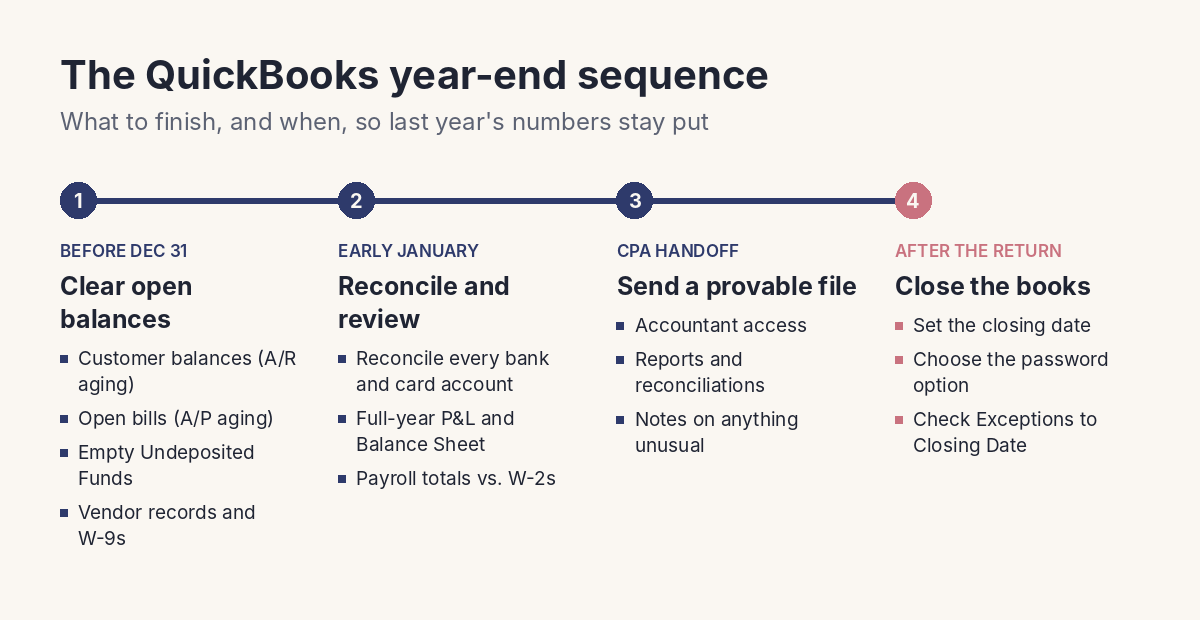
- What to finish before December 31
- What to confirm in early January
- What to hand your CPA
- How to close the books so the year stays closed
It covers bookkeeping, not taxes. Peak Advisers isn’t giving tax advice here, and the questions that need a tax professional’s judgment are marked for your CPA along the way.
Key Takeaways
- QuickBooks year-end work runs in a sequence: clean up open balances before December 31, reconcile and review in early January, hand off to your CPA, then close the books.
- Stale customer balances, paid bills that still show as open, and money left in Undeposited Funds are the most common reasons year-end numbers don’t hold up.
- Closing the books in QuickBooks Online has two security options. The warning-only option still lets anyone with access change the closed year. The password option is the one that protects it.
- QuickBooks moves last year’s net income into retained earnings on its own when the new fiscal year starts, so you don’t need to post a year-end entry for it.
- Peak Advisers handles the QuickBooks side of year-end. Write-offs, depreciation, owner distributions, and anything else that needs a tax judgment belong with your CPA.
Your QuickBooks Year-End Starts Before December 31
The dates in this post assume a calendar-year business. If your fiscal year ends in a different month, shift everything to match, and confirm QuickBooks has the right year on file: go to Settings, then Account and settings, select the Advanced tab, and check First month of fiscal year in the Accounting section. Reports, retained earnings, and the closing date all follow that setting.
The work below goes faster while the year is still open, because the people who can answer questions about a stray invoice or an unpaid bill are still thinking about this year.
Clear Out Stale Customer Balances
Run the Accounts receivable aging summary (Reports, then Standard reports) and look at everything more than 90 days old. Some of those balances are real, and a statement or a phone call before December 31 may still collect them. Others are payments that were deposited but never applied to the invoice, duplicate invoices, or credits that were issued and never matched.
Each one overstates what customers owe you, and some overstate your income too. Fix the ones that are bookkeeping errors. For invoices you don’t expect to collect, ask your CPA how they want write-offs handled before you record anything, because that choice can affect the return.
Intuit notes the aging reports are available in QuickBooks Online Essentials, Plus, and Advanced. If you’re on Simple Start, the customer balance reports give you a similar view.
Settle or Clean Up Open Bills
Run the Accounts payable aging summary next. The usual problem here is the reverse of the receivables problem: a bill was entered, then paid by check or card outside of the Pay bills screen, so the bill still shows as open and the payment was recorded as a separate expense. That counts the same cost twice and leaves a vendor balance you don’t owe.
Match those payments to their bills, pay anything that’s legitimately due, and ask about any vendor balance nobody can explain. A credit card payment recorded as a check also affects your 1099 totals, which matters in January.
Empty Undeposited Funds
Undeposited Funds is where QuickBooks holds customer payments until you record the bank deposit that includes them. When deposits get added straight from the bank feed instead of being matched to those payments, the payments stay in Undeposited Funds and the deposit gets recorded a second time as new income.
Open the account and look at what’s in it. Anything older than a few days usually belongs on a deposit that was already recorded. Group the payments into the correct deposits, or match them to the bank feed entries, until the balance is close to zero at December 31. Intuit’s year-end guide for QuickBooks Online lists this step for the same reason.
Get Vendor Records Ready for 1099s
Contractor forms are due shortly after the year ends, and the information comes straight from your vendor records, so this belongs in your QuickBooks year-end prep. Before December 31, confirm which vendors are tracked for 1099s, request any missing W-9s, and recode card payments that came in as checks. Our post on the 1099 rules covers the current reporting amounts, the filing dates, and what to check in QuickBooks.
The First Two Weeks of January: Make the Numbers Provable
Once the year is over, the QuickBooks year-end job shifts from cleaning up to confirming. Every number on your year-end reports should trace back to a bank statement, a credit card statement, or a payroll record.
Reconcile Every Bank and Credit Card Account Through December 31
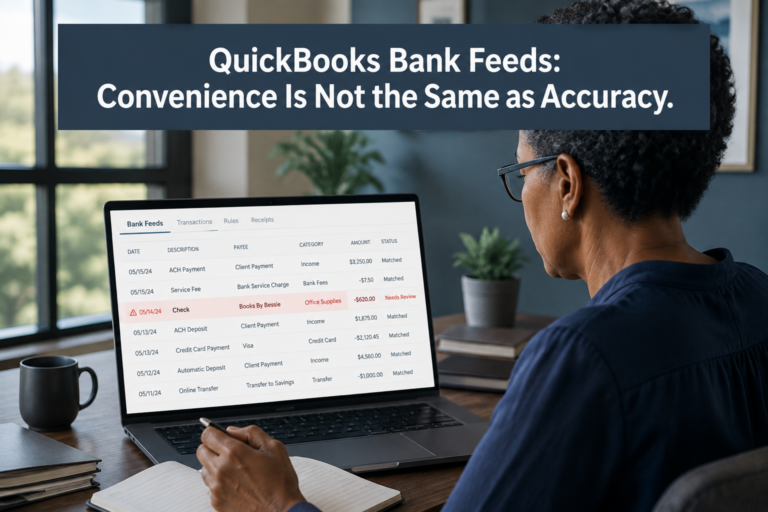
Reconcile each account against its December statement, including the savings account nobody touches, the credit card one person uses, and any loan account with a statement balance. If the reconciliation won’t balance, the difference is usually a transaction that was miscategorized, duplicated, or matched to the wrong entry from the bank feed. Our post on QuickBooks bank feed accuracy walks through where those errors start.
Don’t force a reconciliation to balance with an adjustment just to finish it. That moves the error into a different account where it’s harder to find.
Run the Full-Year Balance Sheet and Profit and Loss
Run the Profit and Loss for the full year and the Balance Sheet as of December 31. Read them the way your CPA will.
- On the Profit and Loss, look for income or expense accounts that are far higher or lower than last year, and for anything in Uncategorized Income or Uncategorized Expense.
- On the Balance Sheet, every asset and liability balance should be something you can explain, such as a loan balance that matches the lender’s statement or an Opening Balance Equity amount your CPA has seen before. Negative balances in accounts that shouldn’t go negative are a sign that something was recorded against the wrong account.
If you find a problem, fix the transaction that caused it, not the report total.
Check Payroll Totals Before W-2s Go Out
Compare year-to-date payroll totals in QuickBooks against what your W-2s will report, employee by employee. That now includes the qualified overtime figure employers report in box 12 of the W-2, using code TT. Our post on no tax on overtime covers how QuickBooks Payroll tracks it and how to correct year-to-date totals. If you use QuickBooks to send forms to employees, check your delivery settings so you aren’t paying for mailed copies you don’t need.
Hand Your CPA a File, Not a Folder of Questions
When the reconciliations are done and the reports make sense, your QuickBooks year-end handoff gives your CPA a file they can work from instead of a list of questions to send back. Before the handoff, give them:
- Accountant access to QuickBooks Online, if they don’t already have it, so they can review and adjust inside your file
- The full-year Profit and Loss and the December 31 Balance Sheet
- Reconciliation reports for every bank, credit card, and loan account
- A short note on anything unusual this year: a new loan, a vehicle or equipment purchase, a large write-off you’re considering, or a change in ownership
Leave the adjustments that need tax judgment to the CPA. Depreciation, accruals, owner distributions, and how to treat a bad debt are their decisions, and they’ll usually send you adjusting entries or record them in your file directly.
You also don’t need to make a “closing entry” to zero out the year. Intuit’s help article on locking your books explains that QuickBooks Online moves last year’s net income to retained earnings when the new fiscal year starts. Posting your own entry on top of that throws off the Balance Sheet your CPA is about to review.
Close the Books in QuickBooks Online So the Year Stays Closed
The last QuickBooks year-end step comes after your CPA’s adjustments are recorded and the return is filed: close the books. Setting a closing date is what keeps someone from editing, deleting, or backdating a transaction into a year you’ve already reported. Intuit’s help article now calls this “locking your books” and uses the term “lock date,” but the setting in QuickBooks Online is still labeled Close the books, with a Closing date field.
Set the Closing Date
You need to be a primary admin or company admin to do this.
- Go to Settings, then select Account and settings.
- Select the Advanced tab.
- In the Accounting section, select Edit.
- Turn on Close the books.
- Enter the Closing date, usually the last day of your fiscal year.
- Choose a security option from the dropdown.
- Select Save.
Warning or Password: Pick the One That Protects the Year
QuickBooks Online gives you two choices for what happens when someone tries to change a transaction dated on or before the closing date:
- Allow changes after viewing a warning. QuickBooks shows a warning, and the person can still make the change. That’s useful as a reminder, but it doesn’t protect the year from an accidental edit, a bank feed match dated last December, or a well-meaning fix to an old invoice.
- Allow changes after viewing a warning and entering password. The change requires the closing date password. This is the option that keeps the year closed.
Intuit’s own article says you can’t edit transactions before the closing date, but its description of the warning-only option says users can still make changes. In practice, the password option is the one that stops edits. Choose it, keep the password with whoever owns the books (the owner, the controller, or your CPA), and don’t share it with everyone who has a login.
When Your CPA’s Adjustments Come Back
Adjustments sometimes arrive after you’ve closed the books. An admin can enter them with the closing date password, or change the closing date, record the entries, and set it again. Either way, tell whoever handles your books that the year was reopened, so nobody is surprised when the Balance Sheet moves.
See What Changed After You Closed
QuickBooks Online includes an Exceptions to Closing Date report that shows changes made to transactions in the closed period after you closed it. To find it, go to Reports, then Standard reports, and search for Exceptions to Closing Date. Check it before you send numbers to a lender or start next year’s return. If the report shows changes you didn’t expect, you’ll know before your CPA does.
When the Year-End Review Turns Up More Than a Checklist Can Fix
Some files need more than a QuickBooks year-end review. If reconciliations haven’t been done for months, the Balance Sheet has balances nobody can explain, or the same problems show up every January, a checklist only gets you through this year. A cleanup fixes the setup that keeps producing them, and our QuickBooks cleanup guide explains what that involves.
If you work through this list and you’re not sure whether your file needs a review or a cleanup, ask us. We’ll look at it and tell you which one fits.
How Peak Advisers Runs a QuickBooks Year-End Review
Peak Advisers has been a certified QuickBooks Solution Provider since 2011, and year-end reviews are a regular part of our work with QuickBooks Online clients.
We start with the balances that cause the most trouble at tax time: open receivables and payables, Undeposited Funds, unreconciled accounts, and anything sitting in uncategorized accounts. We fix what’s wrong, document what we changed, and prepare a clean handoff for your CPA with the reports they’ll ask for. Once the return is filed, we set the closing date with password protection and show you how to check the Exceptions to Closing Date report, so the year you filed is still the year in your books when a lender or your CPA asks for it.
Frequently Asked Questions
How do I close the books in QuickBooks Online?
Go to Settings, then Account and settings, select the Advanced tab, and select Edit in the Accounting section. Turn on Close the books, enter a closing date, choose a security option, and select Save. You need to be a primary admin or company admin. Choose the password option if you want to prevent changes to the closed year.
Does setting a closing date stop people from changing last year?
Only if you choose the password option. With “Allow changes after viewing a warning,” anyone with access sees a warning but can still change the transaction. With “Allow changes after viewing a warning and entering password,” they need the closing date password.
What if my CPA sends adjustments after I’ve closed the year?
An admin can enter them using the closing date password, or change the closing date, record the adjustments, and set it again. Let whoever handles your books know when the year has been reopened.
Can I see what changed after I closed the books?
Yes. Run the Exceptions to Closing Date report, found under Reports, then Standard reports. It lists changes made to transactions in the closed period after the closing date was set.
When should I start my QuickBooks year-end work?
Start with customer balances, open bills, Undeposited Funds, and vendor records before December 31, while the year is still open. Reconcile and review in the first two weeks of January, then hand the file to your CPA. Close the books after the CPA’s adjustments are recorded.
Get Your QuickBooks Year-End Done Before the CPA Asks
A clean QuickBooks year-end gives you numbers you can take to your CPA, your lender, and your own planning meetings without wondering whether they’ll change next month. The work is mostly cleanup and confirmation, and it goes faster in November and December than it does in a rush in late January. If you’d like a second set of eyes on your file before year-end, or help closing the books so last year stays closed, Peak Advisers can help.