Most business owners use QuickBooks Online the same way: record transactions, reconcile the bank, send invoices, run a P&L when the accountant asks for one. That covers the basics — and leaves a significant portion of what they’re already paying for completely untouched.
This isn’t a criticism. QBO has expanded considerably over the past several years, and Intuit doesn’t exactly make it easy to know what’s new or what you might be missing. The result is that most businesses are running a capable platform at partial capacity — paying for tools they haven’t configured while adding external subscriptions, spreadsheets, and staff hours to solve problems the system could already handle.
This post covers the specific capabilities most often left on the table — what they do, what breaks when they’re not set up, and what it actually costs to keep ignoring them.
Key Takeaways
- Bank feed rules eliminate repetitive manual categorization — most businesses with connected bank accounts aren’t using them
- Recurring transactions and automated payment reminders directly affect cash flow and AR aging — both are underused
- The Cash Flow Planner gives a forward-looking view of cash position that most owners are currently rebuilding manually in spreadsheets
- Bill Pay Basic is now included in all QBO plans — many businesses are still paying separately for what they already have
- Custom Fields replaced the Tags feature in May 2025 — businesses that relied on Tags need to take action, and those that never used Tags are missing a reporting capability
- Customizable, scheduled reports can put the right financial picture in front of leadership automatically — without anyone having to build it each month
Your Bank Feed Is Connected. Your Rules Probably Aren’t.
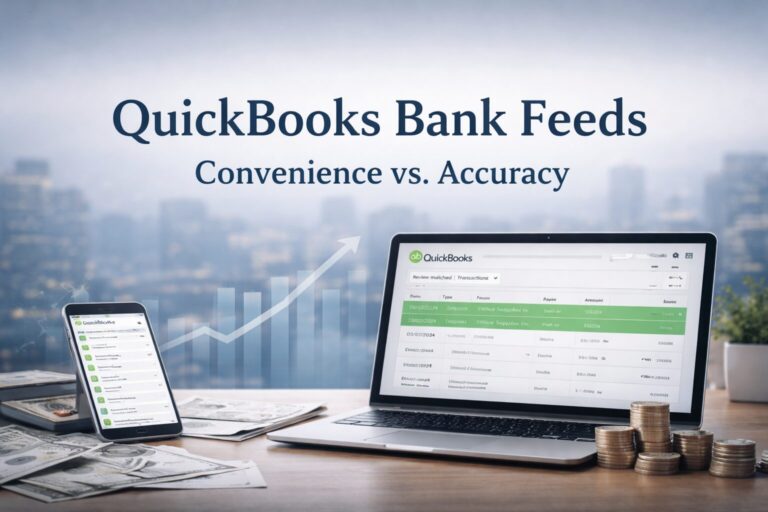
Connecting a bank or credit card account to QBO is usually the first thing a business does when setting up the system. What most don’t do next is set up bank rules — and that’s where a significant amount of recurring manual work originates.
Bank rules tell QBO exactly what to do when a transaction that matches specific criteria comes through the feed. When your internet provider hits the account, the rule assigns it to the right expense category, maps it to the right vendor, and adds it to your books — without anyone touching it. Every time. The same logic applies to recurring software subscriptions, utilities, vendor payments, and any other expense that appears with recognizable patterns in the bank description.
Without rules, every one of those transactions lands in the For Review queue and waits. The bookkeeper categorizes it manually, or it piles up until someone has time to work through the backlog. That backlog is where categorization errors happen, and where month-end close gets slow.
The setup investment is real but one-time. Businesses with clean recurring expense patterns can eliminate the majority of manual bank feed work with a relatively small number of well-configured rules. If your bookkeeper is spending meaningful time each month categorizing the same transactions they categorized last month, that time is the cost of not having rules in place.
Recurring Transactions — Not Just for Invoices
QBO’s recurring transaction feature handles more than just subscription invoices. It applies to any transaction type the system supports: invoices, bills, expenses, journal entries, purchase orders. For businesses with predictable monthly obligations — rent, retainers, standing vendor payments — setting those up as recurring templates means they either post automatically on schedule or appear as reminders ready for one-click approval.
The distinction between automatic and reminder templates matters. For a fixed monthly expense that never varies, automatic posting makes sense. For an invoice where the amount changes but the structure stays the same, a reminder template pre-fills everything except the variable field — the service date, the billable hours, the project total — and prompts someone to review before it goes out. That’s faster than building the invoice from scratch every time, and it’s more consistent.
What breaks without this: staff spend time recreating transactions they’ve already created before, detail gets missed because someone is working from memory rather than a template, and the business discovers its error when a vendor calls about a missed payment or a client disputes a charge.
Automatic Payment Reminders Are Already There
Aging accounts receivable is one of the most common cash flow problems in small business — and one of the most avoidable. When invoices go out and nobody follows up until the owner notices a cash shortfall, the gap between invoice and payment stretches, and the follow-up becomes uncomfortable because it’s late.
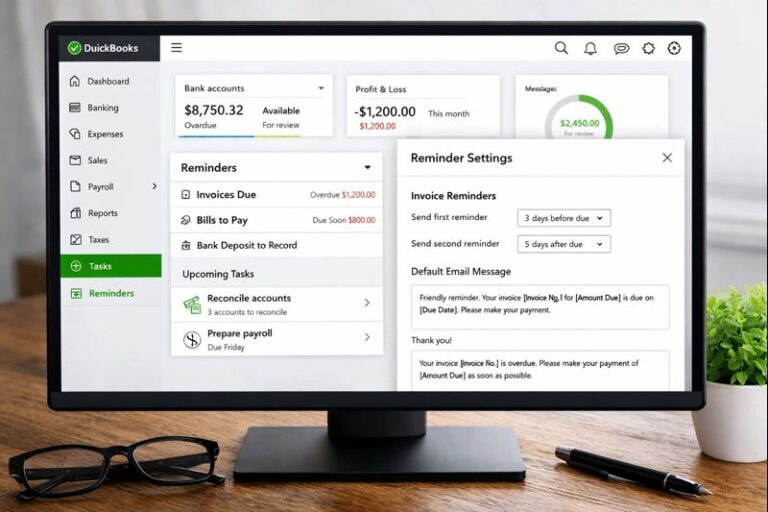
QBO’s automatic payment reminders send follow-up messages to customers with outstanding invoices on a schedule you set. The reminder goes out without anyone having to remember to send it, without anyone having to check the aging report first. A customer with a 15-day invoice gets a reminder at 15 days. A customer at 30 days gets a different message. The timing and language are configurable.
This is already in your QBO subscription. Most businesses aren’t using it, which means someone is doing this manually — inconsistently — or not doing it at all. Either way, the invoices are aging longer than they would with a consistent automated follow-up in place. The business feels the effect in cash flow before anyone identifies the cause.
The Cash Flow Planner Gives You a Forward View
Most small business financial reporting is backward-looking by default. The P&L tells you what happened last month. The balance sheet tells you where you stand today. Neither tells you whether you’ll be short on cash in six weeks.
QBO’s Cash Flow Planner addresses that gap directly. It uses transaction history from connected bank accounts, outstanding invoices with future due dates, and scheduled bills to project your cash position forward. The result is a visual, time-based picture of what’s coming — not a static snapshot of what already happened.
The businesses that aren’t using this are typically doing one of two things: either running a manual spreadsheet projection that gets rebuilt every month and is out of date almost immediately after it’s built, or not projecting at all and discovering shortfalls when they arrive. The Cash Flow Planner is not perfect — it reflects what’s been entered and what’s been connected — but a well-maintained QBO setup makes it a meaningful operational tool rather than a decoration on the dashboard.
This is one of the clearest examples of a feature that requires setup discipline to work. If recurring bills are entered as templates, if invoices are created with accurate due dates, if the bank feed is current — the planner reflects reality. If none of that is in place, the planner shows a distorted picture. The answer is not to ignore the feature. It is to fix the setup.
Bill Pay Basic Is Now in Every QBO Plan
As of September 2025, Intuit added QuickBooks Bill Pay Basic to all QBO plans — Simple Start, Essentials, Plus, and Advanced. That means every QBO subscriber can now forward vendor invoices directly to QBO to generate pre-filled bills, schedule payments, and have those payments automatically recorded and matched to transactions.
Many businesses are still handling vendor payments outside QBO and reconciling them back in by hand. Others are paying for a separate bill payment service. If that description fits, there is no longer a cost barrier to consolidating that workflow inside the system. It is already there.
Whether Bill Pay Basic covers the full scope of a given business’s vendor payment needs depends on volume and workflow. But for businesses managing a manageable number of vendor bills each month, the feature eliminates a reconciliation step that currently costs time and introduces error at every touch.
Custom Fields Replaced Tags in May 2025
If your business ever used QBO’s Tags feature to track additional dimensions of business activity — which customers or jobs were most profitable, which region a transaction belonged to, which sales rep was involved — that feature was replaced by Custom Fields in May 2025.
Custom Fields are more capable. They apply to invoices, expenses, and other transaction forms, and they support filtering in reports in ways that Tags didn’t. For businesses that relied on Tags and haven’t transitioned, the tracking they set up is no longer functioning as intended. For businesses that never used Tags, Custom Fields is a reporting capability they haven’t accessed.
The practical application: a service business that wants to track which types of jobs are generating the most revenue — without setting up separate Classes or overhauling its chart of accounts — can use Custom Fields to add a job type field to invoices, then filter reports by that field. That’s a meaningful visibility improvement that doesn’t require a structural overhaul of the books.
Customized, Scheduled Reports Can Replace the Manual Monthly Build
QBO allows users to build custom report configurations — filtered by class, location, customer, date range, or other parameters — save those configurations, and schedule them to be delivered automatically by email. Once built, the report runs itself and lands in the right inbox at the right time.
Most leadership teams aren’t getting this. Instead, someone is pulling reports manually, reformatting them for readability, and distributing them in a way that takes time and introduces the possibility of error. The information the owner or controller needs to start every Monday could be arriving automatically — as of the close of business Friday — if the report had been built and scheduled once.
This is the kind of setup work that pays dividends every month for as long as the business uses QBO. It is also the kind of work that doesn’t happen without someone specifically focused on it — because it’s not urgent, even when it’s worth doing.
Example: The Bookkeeper Who Was Doing the System’s Job
The following is a hypothetical example to illustrate how this works in practice — not a specific client case study.
A professional services firm with twelve employees and a handful of recurring clients has been running on QBO for four years. The bookkeeper spends roughly six hours at month-end categorizing bank transactions, manually following up on overdue invoices, rebuilding a cash flow spreadsheet, and assembling a monthly report for the owner.
None of that work is wrong. All of it could be mostly automated. Bank rules would handle the recurring transaction categorization. Automatic payment reminders would handle invoice follow-up for standard clients. The Cash Flow Planner, connected to a well-maintained set of recurring templates, would replace the spreadsheet. A scheduled custom report would replace the manual monthly build.
The six hours don’t disappear entirely — someone still has to review what the system has done. But the bookkeeper’s role shifts from doing the mechanical work to confirming it. That’s a different job, and it frees the firm’s financial function to do something more useful than reconstruct the same picture every thirty days.
When the Features Are Not the Problem
These capabilities are only as useful as the setup behind them. A bank feed full of uncategorized transactions from the past eighteen months does not become useful the day someone turns on bank rules — the backlog has to be addressed first. A Cash Flow Planner connected to incomplete or inaccurate data produces projections that mislead rather than inform.
The honest reality: most QBO setups that aren’t delivering these benefits aren’t failing because the features don’t exist. They’re failing because the foundation — chart of accounts structure, bank feed cleanliness, transaction consistency — was never built to support them. Turning on a feature in a poorly structured environment often makes things more confusing, not less.
This is where the distinction between a software purchase and an advisory relationship matters. The tools are accessible to anyone with a QBO subscription. Getting them configured to produce reliable output requires someone who has done that work before and knows where the setups go wrong.
Peak Advisers has worked inside hundreds of QBO environments. We know what the gaps look like before we ask a single question. If you have a sense that your system should be giving you more than it is — and you’re not sure whether the problem is the tool or the setup — that is exactly the conversation we are built for.
Frequently Asked Questions
Do I need QuickBooks Online Advanced to use these features?
Most of the features covered here — bank rules, recurring transactions, automatic payment reminders, the Cash Flow Planner, and Bill Pay Basic — are available across QBO plan tiers. Custom Fields and scheduled report delivery have some plan-level variation in scope and volume. If you are on a lower-tier plan and find a specific feature is restricted, that is worth evaluating when you assess your subscription level — but the majority of what is described here is not gated behind the Advanced tier.
How long does it take to set up bank rules?
For a typical small business with a manageable number of recurring vendors and expense types, an initial bank rule configuration can be completed in an afternoon. The more useful question is how much ongoing time it saves — and the answer depends on current transaction volume and the consistency of your bank feed descriptions. In most setups, the configuration pays for itself within the first month.
My bookkeeper handles QBO, shouldn’t they already have set this up?
Not necessarily. A bookkeeper brought in to record transactions and reconcile accounts may not have been asked to evaluate the setup or configure automation. That’s a different scope of work. If your bookkeeper is spending significant time each month on tasks that could be automated, the right conversation is about whether the current scope of engagement is the right one — not whether the bookkeeper is doing their job incorrectly.
We used tags in QBO. What happened to them?
Intuit replaced the Tags feature with Custom Fields in May 2025. If you had Tags configured, they no longer function in the same way. You will need to transition to Custom Fields to continue tracking that data. This is worth addressing directly — if you built your reporting around Tags and haven’t made the transition, your reports are missing data you expected to see.
Does Cash Flow Planner connect to Payroll?
If you’re using QuickBooks Payroll, scheduled payroll runs can be reflected in the Cash Flow Planner as future transactions. The accuracy of the projection depends on how consistently payroll and other recurring obligations are maintained inside the system. Businesses managing payroll outside QBO will need to add those obligations manually as planned transactions for the planner to reflect a complete picture.
Is Bill Pay Basic sufficient for most small businesses?
It depends on bill volume and workflow complexity. Bill Pay Basic covers the core use case — forward a vendor invoice, generate a pre-filled bill, schedule the payment, have it recorded automatically. For businesses managing a high volume of vendor payments, or those with more complex approval workflows, the higher-tier Bill Pay options or a purpose-built AP tool may be more appropriate. Peak Advisers can help assess which configuration fits your actual volume and workflow.
Your Subscription Is Already Paying for This
QuickBooks Online is not a system most businesses have fully configured. The features described here — bank rules, recurring transactions, automated reminders, cash flow projection, bill pay, custom reporting — are already in the subscription most small business owners are writing a check for every month.
The gap between what QBO can do and what most businesses are using it for is not a software problem. It is a setup problem. And setup problems have a specific cost: staff time spent doing manually what the system could handle automatically, cash flow surprises that better visibility would have surfaced earlier, and leadership decisions made on reporting that required an hour to assemble instead of arriving on its own.
If you’ve been running QBO for more than a year and haven’t deliberately configured these capabilities, there’s a reasonable chance your system is working harder than you are — and delivering less than it should.
Peak Advisers has been a certified QuickBooks Solution Provider since 2011. We work inside QBO setups every week, and we know what a well-configured system looks like compared to one that’s just getting by. If you want to know which of these features are sitting unused in your account — and what it would take to activate them correctly — that assessment is where we start.