Most of the work in a QuickBooks Online setup happens in the first few days, and most of its consequences arrive months later. The start date you pick decides whether your first bank reconciliation ties to the statement. The accounts you accept decide what your Profit and Loss can show a lender or a buyer. The way you set up sales tax decides whether your first return matches what you collected. None of these choices looks important on the day you make it, and several are slow to unwind once a few hundred transactions sit on top of them.
Each setup decision below applies to a new QuickBooks Online company: a new business, a new entity, or a fresh file that starts on January 1. For each one, you’ll see where it surfaces later, in a report, a reconciliation, a sales tax filing, or year-end.
Key Takeaways
- The start date and opening balances set the starting point for every reconciliation. If your bank connection pulls in transactions from before that date, the difference lands in Opening Balance Equity, and your accountant will ask about it at year-end.
- In the chart of accounts, the account type decides which report an account appears on; the detail type is only a label. Build the list around what your accountant needs for the tax return and what you need to see each month.
- Bank rules set to auto-post add transactions to your books without anyone reviewing them. Start with narrow rules for predictable charges, and add auto-post only after a rule has proven itself.
- Classes and locations are available in QuickBooks Online Plus (40 combined) and Advanced (unlimited). Turn them on before the first transaction, because they don’t fill in history.
- Sales tax setup starts with your state registration, not with QuickBooks. Filing frequency, item tax categories, and customer exemptions decide whether the first return comes out right.
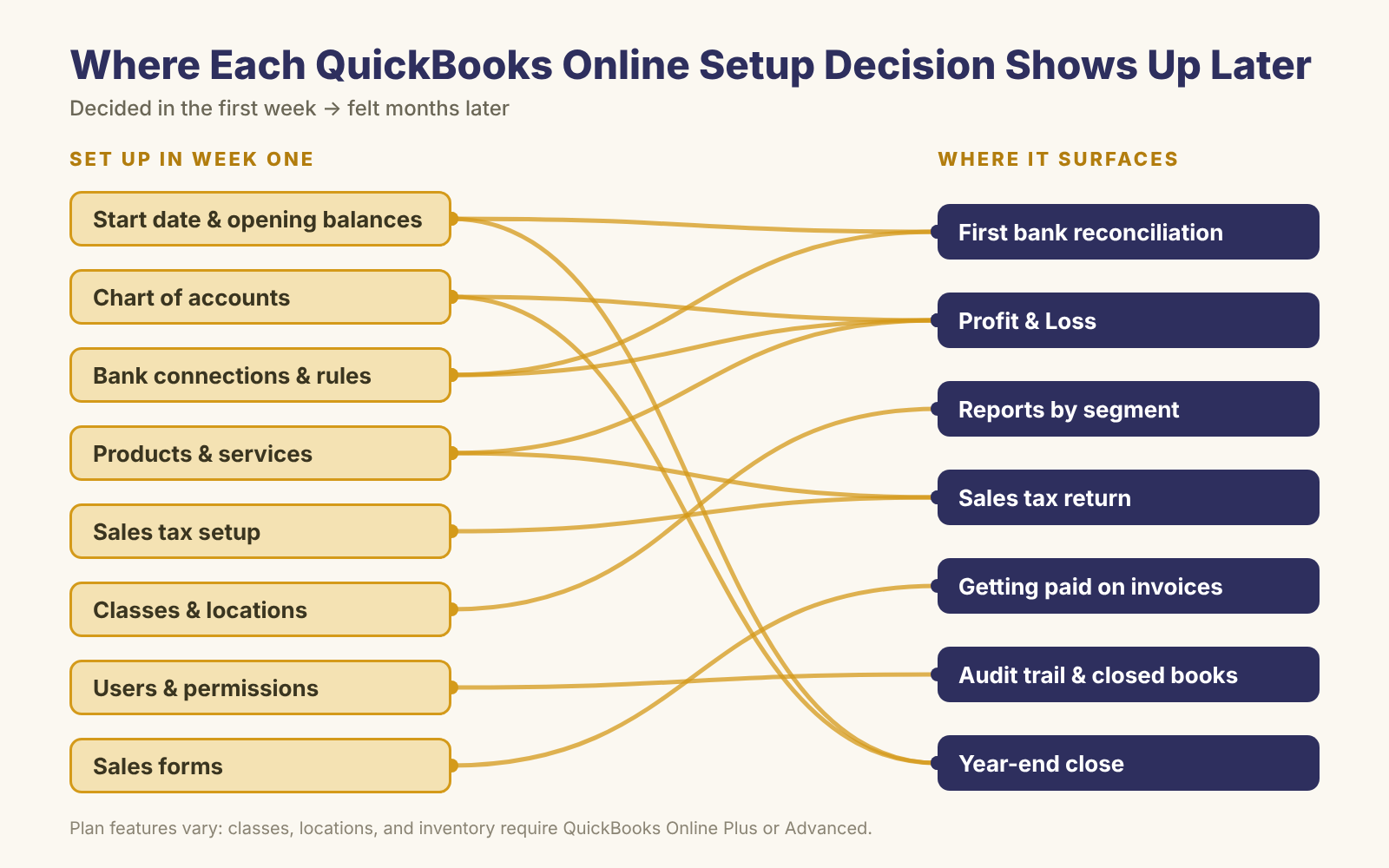
Where Each QuickBooks Online Setup Decision Shows Up Later
Intuit’s setup flow walks you through company info, bank connections, products, and sales tax in a sensible order. The order in which mistakes cost you is different. A wrong start date shows up at the first reconciliation. A thin chart of accounts shows up the first time someone asks what a service line earned. A permission setting shows up the day a reconciled transaction changes and nobody knows who changed it.
The Start Date and Opening Balances: Your First Reconciliation
Intuit’s help article on opening balances explains that when you add a real bank or credit card account, you enter its balance on the day you start tracking it in QuickBooks. For a new account, Intuit says to use the day you opened it at the bank; for an existing account, the beginning date of your next statement. If you connect the account instead of entering the balance yourself, QuickBooks adds up the transactions since the start date you picked and uses them to calculate the opening balance. Either way, QuickBooks records the other side of each starting balance in an account called Opening Balance Equity.
That calculation is where the trouble starts. If the start date reaches back before the business existed, or before the January 1 start for a fresh file, transactions from another period become part of your new books. The first reconciliation, the monthly check that QuickBooks agrees with your bank statement, won’t tie. The gap sits in Opening Balance Equity until someone explains it. Accountants look at that account closely at year-end, because a balance there usually means a starting number was never confirmed.
Two settings belong in the same conversation. Under Settings > Account and settings > Advanced, the Accounting section holds the first month of your fiscal year and your accounting method. Cash basis records income and expenses when money moves; accrual records them when you send an invoice or receive a bill. The method is a tax decision, so confirm it with your CPA before you choose. Balances that didn’t come from a bank, such as a loan, equipment, or money the owner put in, should come from your accountant’s numbers rather than from estimates. For a fixed asset, Intuit’s article says to leave the opening balance empty and use the account when you record the purchase.
The Chart of Accounts: What Your Profit and Loss Can Show
Intuit’s article on account types and detail types draws the line clearly. The account type determines how QuickBooks tracks money and whether the account appears on the Balance Sheet or the Profit and Loss. The detail type doesn’t affect the accounting or which report the data appears on; it’s an organizing label. Because reports read the account type, choosing the wrong one puts everything posted to that account in the wrong section of your financial statements. Changing it later moves the history along with it.
QuickBooks starts you with a standard list based on your business entity. Intuit Intelligence, Intuit’s built-in AI, can now tailor the starting books to your industry when you describe your business, according to Intuit’s release notes. That’s a useful starting point. It still can’t know that your lender wants labor costs separated from materials, or that your accountant assigns certain expenses to specific lines on your tax return. When the default list is accepted as is, expenses either pile into a few broad accounts or split across near-duplicates (“Supplies” and “Supplies & Materials”). Automated categorization learns from those choices, so an unclear list teaches it unclear habits.
A few practical limits apply. QuickBooks Online Essentials and Plus allow up to 250 accounts; Advanced has no limit, according to Intuit’s usage limits article. Account numbers are off by default; you can turn them on under Settings > Account and settings > Advanced > Chart of accounts. Building the list with your accountant before you enter the first transaction costs an hour or two. Reworking it after six months means reclassifying transactions one batch at a time.
Bank and Card Connections: Reconciliation and Bank Rules
To connect a bank or credit card account, go to All apps > Accounting > Bank transactions and select Connect account. You choose which accounts to connect and set a start date for each. Intuit notes that download timespans vary by bank, from 90 days up to 24 months. During the connection, you either match each bank account to one already in your chart of accounts or add a new one. Suppose you already created the account with an opening balance. If you then select Add New during the connection, you end up with two accounts for one bank account and two opening balances to sort out.
Keep personal accounts out of the connection list, even when the owner used a personal card for business before the company existed. Those purchases are real, and your accountant can tell you how to record them. A bank feed that mixes personal and business transactions from day one, though, creates reconciliation work every month after.
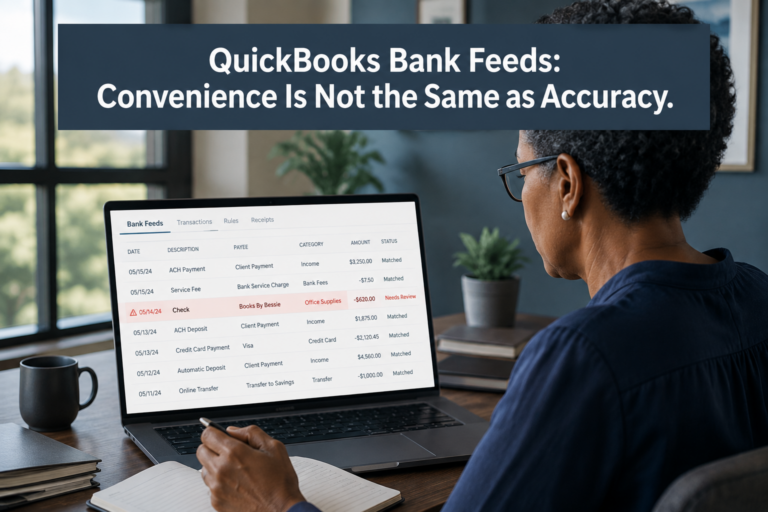
Bank rules live under All apps > Accounting > Rules, on the Bank rules tab. A rule can have up to five conditions. When you turn on Auto-post, QuickBooks automatically adds every transaction on the Pending tab that meets the rule’s conditions, with no review step. Intuit suggests starting with simple, consistent transactions such as rent or fuel. That advice matters most in the first week, when it’s tempting to build broad rules for everything. A rule such as “description contains Amazon” set to auto-post will send office supplies, inventory purchases, and the occasional personal order to one account. Nobody will look at them until the numbers stop making sense. We cover what bank feeds can and can’t catch in QuickBooks Bank Feeds: Convenience Is Not the Same as Accuracy.
Products and Services: Sales Reports and Inventory
Every product or service item points to an income account, and that link decides where each sale lands on your Profit and Loss. Intuit’s product and service items article lists four types: inventory (available in QuickBooks Online Plus and Advanced), non-inventory, service, and bundle. You add them under All apps > Sales & Get Paid > Products & services.
The shortcut that causes trouble later is a single generic item, often called “Sales” or “Services,” used on every invoice. It works on the first day, and it leaves the Sales by Product/Service report with one line on it. When you later want to know which service line carries the business, the answer isn’t in the file. Splitting items afterward helps going forward, but sales already recorded stay where they posted.
If you sell physical products and plan to track quantities, the costing choice is the one to slow down on. QuickBooks values what’s on your shelf one of two ways: FIFO (first in, first out) or Moving Average Cost. Intuit’s help says you choose the method once, and the choice can’t be changed. Talk it through with your accountant before you create the first inventory item. If you’re already tracking inventory, our year-end inventory count guide covers how counts and adjustments work once the file is running.
Sales Tax: Your First Return
Automated sales tax starts under All apps > Sales Tax > Overview, where you select Use automatic sales tax. You confirm your business address, say whether you collect tax outside your state, and choose how often you file with each tax agency. Intuit’s setup article says your business must be registered with the state before you add tax agencies. When you add an agency later, QuickBooks also asks for a start date and a reporting method, cash or accrual.
QuickBooks calculates the tax from three things, and each one is a setup decision:
- The customer’s tax status. An exempt customer who was never marked exempt gets taxed until someone notices, usually when the customer’s accounts payable team sends the invoice back.
- The business location and the ship-to address on the form. These decide which state and local rates apply.
- The tax category on each product or service. An item without the right category can charge tax where none applies or miss tax where it does.
Filing frequency matters too. A frequency that doesn’t match your state registration produces return periods that don’t line up with what the state expects.
If you sell into other states, Intuit’s economic nexus page in QuickBooks helps you watch the sales thresholds that can create an obligation to register elsewhere. Whether you owe tax in another state, and which method to report on, are questions for your CPA. This isn’t tax advice; our role is getting QuickBooks set up so it reflects your CPA’s answers.
Classes and Locations: Reports by Segment
Class tracking and location tracking are available in QuickBooks Online Plus and Advanced. You turn them on under Settings > Account and settings > Advanced, in the Categories section. For classes, you also choose whether to assign one class to the entire transaction or one to each row, which matters if a single invoice can cover work from two departments.
Plus allows 40 classes and locations combined; Advanced has no limit. A business that designs 30 classes and 15 locations on Plus has already run out of room.
Timing matters more than design here. Classes don’t fill in the past. A business that turns on class tracking in month six has five months of transactions with no class. Every report by class shows a large unassigned column until someone goes back through the history. Intuit’s class tracking article makes the same point about payroll: turning on class tracking applies only to new payroll transactions. If you think you’ll want a Profit and Loss by department, property, or service line within the year, set it up before the first invoice.
Users and Permissions: Who Can Change What
QuickBooks Online Essentials includes 3 users, Plus 5, and Advanced 25, according to Intuit’s pricing page. You can also invite up to two accountants at no charge (three on Advanced), and they don’t count toward the limit. Advanced adds custom roles, so you can give someone access to sales and nothing else. You manage all of this under Settings > Manage users.
Two first-week habits cause problems later. The first is a shared login. The audit log, QuickBooks’ record of who changed what, then shows one name for every change, so nobody can tell who edited a reconciled transaction. The second is making everyone an admin, which gives each user access to every setting, including the closing date that protects last year’s numbers. Our post on closing the books at year-end explains why that date matters once the first year is behind you.
The Sales Forms Customers See
Customers see your QuickBooks Online setup on every invoice and estimate. Under Settings > Custom form styles, you can create a new style, set your logo, colors, and layout, and choose which fields appear. Custom fields are limited per transaction by plan: 1 on Simple Start, 4 on Essentials and Plus, and 12 on Advanced, according to Intuit’s custom fields help. Intuit’s help lists them at the transaction level and doesn’t list an option for individual product lines.
The cost of skipping this step usually arrives from the customer’s side. An invoice without the purchase order number a customer’s accounts payable team requires, or with default payment terms that don’t match your agreement, gets held or returned, and the payment waits. Settle the terms, the fields your larger customers need, and where customers should send payment before the first invoice goes out. If you’re bringing a customized Desktop template with you, our QuickBooks Desktop to Online guide covers what changes.
What the First Six Months Could Look Like in a New QuickBooks Online File
The following is a hypothetical example to illustrate how this works in practice — not a specific client case study.
A residential and commercial cleaning company forms a new LLC and opens a QuickBooks Online Plus file that starts January 1. The owner finishes setup in an afternoon. She connects the new business checking account and, to save time, the credit card she used for business supplies the year before, leaving the import start date at its default. She accepts the suggested chart of accounts, creates one service item called “Cleaning,” sets up sales tax for her home state, and shares her own login with her office manager and her bookkeeper.
By June, the pattern is clear. The first bank reconciliation never tied, because the card brought in several months of last year’s purchases, and Opening Balance Equity carries a balance nobody can explain. Her residential and commercial jobs run through one item with one tax category, even though her state taxes the two kinds of cleaning differently, so some invoices carry the wrong tax. When her bank asks for profitability by service line as part of a credit line review, the Profit and Loss has one income line, and class tracking was never turned on. Every change in the audit log shows her name.
None of this takes long to prevent. Fixing it in June takes four jobs:
- Deciding with her accountant how to treat last year’s card purchases
- Splitting the service item and reviewing six months of invoices for sales tax
- Turning on classes and assigning them to past transactions
- Adding a separate login for each user
The decisions are the same ones she would have made in January, now made with six months of transactions sitting on top of them.
Which QuickBooks Online Plan the Setup Assumes
Several QuickBooks Online setup decisions depend on the plan:
| Setup feature | Essentials | Plus | Advanced |
|---|---|---|---|
| Users included | 3 | 5 | 25 |
| Accountant users at no charge | 2 | 2 | 3 |
| Bank connections and bank rules | Yes | Yes | Yes |
| Automated sales tax | Yes | Yes | Yes |
| Chart of accounts | Up to 250 accounts | Up to 250 accounts | Unlimited |
| Classes and locations | Not included | 40 combined | Unlimited |
| Inventory tracking | Paid add-on | Included | Included |
| Custom fields per transaction | 4 | 4 | 12 |
| Custom user roles | Not included | Not included | Included |
Source: Intuit’s QuickBooks Online pricing page and help articles on usage limits, user roles, class and location tracking, and custom fields, checked November 23, 2026. Plan features change; confirm current limits with Intuit or with us before you subscribe.
Choose the plan for the setup you’ll need within the year, not for the first month. Upgrading later is straightforward, but the features you add don’t reach back: classes turned on in month six leave months one through five unassigned. Intuit also includes limited one-on-one coaching with a setup expert. It runs for your first 90 days or until onboarding is complete, whichever comes first, according to its fall 2026 release notes (checked November 23, 2026). That coaching helps with how QuickBooks works. Decisions that depend on your business, such as which parts of the business to report on or how your accountant prepares the return, still need someone who knows the business.
Pricing (verified November 2026): Intuit’s list prices are $85 a month for Essentials, $140 for Plus, and $340 for Advanced. Through Peak Advisers, businesses new to QuickBooks Online get 30% off their first 12 months: $59.50 a month for Essentials, $98 for Plus, and $238 for Advanced. Prices change, so check with us for current pricing before you subscribe. Remember, prices are subject to change.
When a Blank QuickBooks Online File Isn’t the Right Starting Point
A fresh setup fits a new business, a new entity, or a clean break on January 1. A few situations call for a different first step.
- You’re moving from QuickBooks Desktop. Intuit’s import replaces any data already in the QuickBooks Online company, so setup work done before the import is lost. Start with our QuickBooks Desktop to Online guide instead.
- You already have a QuickBooks Online file that has drifted. Starting over gives up the history in that file, and that tradeoff deserves a conversation before you open a new company. Our QuickBooks cleanup guide walks through what a cleanup involves and when it makes more sense than a restart.
- The new entity is one of several that bill each other, share employees, or need consolidated reporting. The setup question becomes a platform question. Talk with us about whether QuickBooks Online Advanced or Intuit Enterprise Suite fits how the businesses work together, before the first entity goes live.
Where Peak Advisers Fits in a New QuickBooks Online Setup
When we set up a new QuickBooks Online company, we start with the reports the owner, the lender, and the CPA will need a year from now, and work backward to the settings. In practice, that means:
- Agreeing on the start date and opening balances with your accountant
- Building a chart of accounts that lines up with your tax return
- Connecting bank and card accounts to the right accounts, with the right start dates
- Writing narrow bank rules first
- Setting up items and sales tax to match how you sell
- Deciding on classes and locations before the first transaction
- Giving each person the access their job needs We’ve been a certified QuickBooks Solution Provider since 2011, and much of our cleanup work traces back to decisions made in the first week of a file. You can see how we work with QuickBooks Online on our QuickBooks Online services page.
Frequently Asked Questions
How long does QuickBooks Online setup take?
Creating the company and working through Intuit’s setup checklist can take an hour or two. The decisions behind it take longer, because several of them depend on your accountant: the start date and opening balances, the chart of accounts, the accounting method, and sales tax. Plan for a few working sessions spread over the first week, finished before the first invoice goes out.
What start date should I use when I set up QuickBooks Online?
For a new bank account, Intuit’s help says to use the day you opened it. For a fresh file on an existing business, many businesses start at the beginning of the fiscal year, often January 1, so the year’s reports come from one system. Whatever date you choose, set the import start date on each bank connection to match it, and confirm the opening balances with your accountant.
Can I change my chart of accounts after I start using QuickBooks Online?
Yes. You can add, rename, merge, and make accounts inactive at any time. The cost comes from what’s already posted. Changing an account’s type moves its history to a different part of your reports, and moving transactions between accounts means reclassifying them. Building the list with your accountant before the first transaction avoids most of that work.
Should I turn on auto-post for bank rules when I first set up QuickBooks Online?
Start without it. Auto-post adds matching transactions to your books without review, so a rule with a broad condition can post many transactions to the wrong account before anyone notices. Let a rule categorize for a month or two, confirm it gets the predictable charges right, then turn on auto-post for that rule only.
Do I need QuickBooks Online Plus to use classes and locations?
Yes. Class and location tracking are available in QuickBooks Online Plus and Advanced. Plus allows 40 classes and locations combined, and Advanced has no limit. If you expect to need either within the year, choose the plan and turn them on before you record transactions, since they don’t apply to past entries.
Can I set up QuickBooks Online myself?
Many owners and managers do, and Intuit includes setup tools and limited coaching to help. The parts that cause trouble later are the decisions that depend on your business and your tax return, not the clicks. If you’d like a second set of eyes before your first invoice goes out, ask for a short review. Checking the start date, chart of accounts, sales tax, and bank rules catches most of what would otherwise turn into cleanup.
The first week of a QuickBooks Online setup decides what the file can tell you for years. It decides whether reconciliations tie and whether the sales tax return matches what you collected. It also decides whether you can show what each part of the business earns when a lender or a buyer asks. If you’re opening a new company, a new entity, or a fresh file for January 1, contact Peak Advisers and we’ll help you make those decisions once, with your accountant’s input, before the transactions start. To see how we work with QuickBooks Online, visit our QuickBooks Online services page.