Most owners build next year’s budget somewhere between Thanksgiving and the first week of January. It usually starts as a copy of last year’s spreadsheet, with revenue nudged up and a few expense lines adjusted. By March, nobody has opened it, and when the next budget season arrives, the owner builds a new one without knowing how the last one compared to what happened.
A QuickBooks budget changes that, because it sits next to the transactions you already record. Once the budget lives in QuickBooks, comparing it to real results takes one report instead of an afternoon of copying numbers into a spreadsheet. Setting it up takes an afternoon. The value comes from a short review every month after that.
Key Takeaways
- A budget is useful only when someone compares it to actual results on a regular schedule. A spreadsheet budget makes that comparison slow enough that it stops happening.
- In QuickBooks Online, budgets are available in Plus and Advanced, and in Intuit Enterprise Suite. Essentials doesn’t include them.
- Before building, confirm your fiscal year start date and your chart of accounts, because a QuickBooks budget can only use accounts that already exist.
- Start from last year’s actual numbers, then adjust the lines where you already know something will change.
- A monthly Budget vs. Actuals review, done after the books are reconciled, separates timing differences and miscategorized expenses from real changes in spending while there’s still time to respond.
Why the Spreadsheet Budget Stops Getting Opened
A spreadsheet budget has no connection to the books. To see how March went, someone has to export the profit and loss report, line up the accounts with the budget rows, paste the numbers in, and check that the formulas still point to the right cells. The person who would do that is usually the owner or the bookkeeper, at month-end, when they’re busiest. So the comparison slides a month, then a quarter, and then it stops.
The decisions don’t stop, though. Owners still hire, set prices, and buy equipment with the budget in the back of their minds, assuming the year is on track. When the year-end numbers come in different from the plan, nobody can say whether the plan was wrong or the spending drifted. The next budget gets built on the same guesses, and a business that’s planning to grow ends up committing to bigger decisions with less evidence than it had the year before.
Three Things to Check Before You Build a QuickBooks Budget
Your fiscal year start date. QuickBooks builds budget columns from your fiscal year. Intuit asks you to confirm the start month in the Advanced section of Account and settings before you create a budget. If your fiscal year doesn’t run January to December and that setting is wrong, every month in the budget will line up against the wrong month of actual results.
Your chart of accounts. A QuickBooks budget pulls its rows straight from your chart of accounts, and Intuit’s import template won’t accept new rows for accounts that don’t exist yet. That makes the chart of accounts the real limit on what your budget can tell you. If one account called “Office expenses” holds software subscriptions, supplies, and the coffee service, the budget line for it can show you that spending went up, but not which of the three caused it. If the chart of accounts has grown messy over the years, a QuickBooks cleanup is worth doing first. And if last year’s books aren’t reconciled and closed yet, the numbers you’d use as a starting point aren’t final; the QuickBooks year-end checklist covers that order of work.
Whether you’ll budget by location or class. QuickBooks lets you build a subdivided profit and loss budget by criteria such as Location or Class. That’s valuable for a business with two shops or separate service lines, but the comparison is only as reliable as the tagging. If a third of last year’s transactions have no location assigned, a location budget will be built on incomplete history and compared against incomplete actuals. Fix the tagging habits before you rely on the split.
How to Build a QuickBooks Budget From Last Year’s Numbers
Budgets are in QuickBooks Online Plus and Advanced. Intuit’s current help article puts them under Reports, then Financial planning, then Budgets. Intuit’s own video still shows the older path through Settings, then Budgeting, so if your screen looks different, the search bar in QuickBooks will find it.
- Select Create budget (or Create new), choose Profit and loss, and pick the fiscal year.
- Choose Consolidated budget for the whole company or Subdivided budget to split it by Location or Class, then select Next.
- Turn on Compare reference data and choose last year’s actual results as the reference.
- Check the accounts you want to pre-fill, then choose Copy reference data from the Batch actions dropdown.
- Adjust the lines where you already know something will change: a new hire, a rent increase, a price change, a client you won’t have next year.
- Switch to the Monthly view and place seasonal revenue and once-a-year costs in the months they’ll hit your books, instead of dividing everything by twelve.
- Select Save and close.
Copying last year forward is the fastest start, and it carries a tradeoff. Whatever happened last year comes along with it, including one-time costs, a lost client’s revenue, and spending that was miscategorized. Read every copied line before you save and ask whether you expect it to happen again.
If your team prefers to work in Excel, you can choose Import budget, download the template QuickBooks builds from your chart of accounts, fill it in, and upload it. Intuit notes that only profit and loss budgets can be imported, the file has to be 10MB or less, and you shouldn’t add rows to the template. QuickBooks Online Advanced also offers Spreadsheet Sync, which keeps a budget connected between QuickBooks and a spreadsheet so edits can go back and forth.
QuickBooks can also build a balance sheet budget, with target ending balances for things like bank accounts and loans. Most small businesses get more from starting with the profit and loss budget and adding a balance sheet budget once the monthly review is a habit.
The Monthly Budget vs. Actuals Review
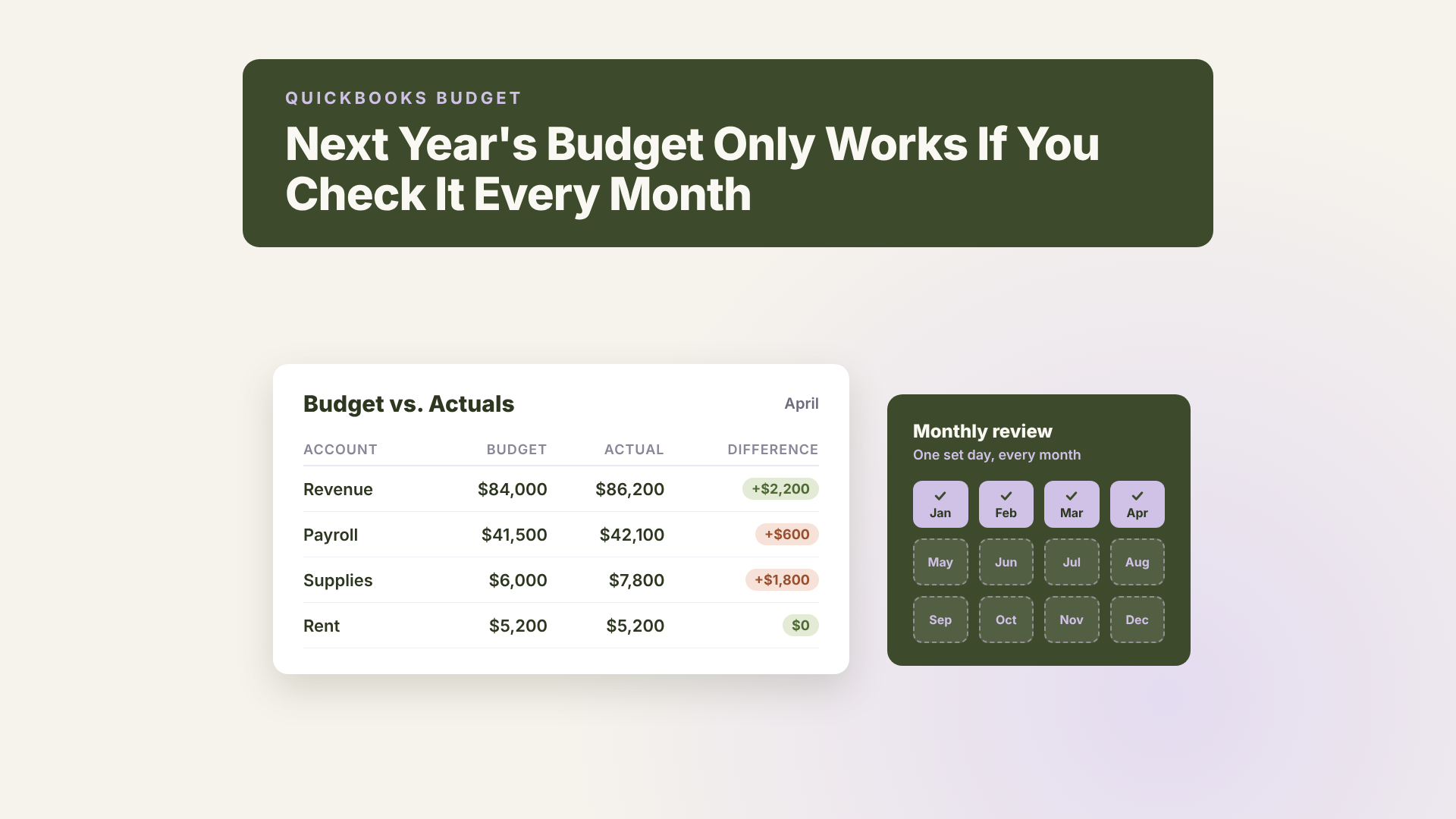
The budget earns its keep in a review that takes about twenty minutes once a month. Pick a set day after the month’s bank and credit card accounts are reconciled, because comparing a budget to unreconciled books mostly measures what hasn’t been entered yet.
From the Budgets list, open the dropdown in the Options column and choose Run Budgets vs. Actuals report. The report shows what you budgeted, what happened, the difference, and the percentage of budget used. It shows one budget at a time, so pick the budget you want to measure against.
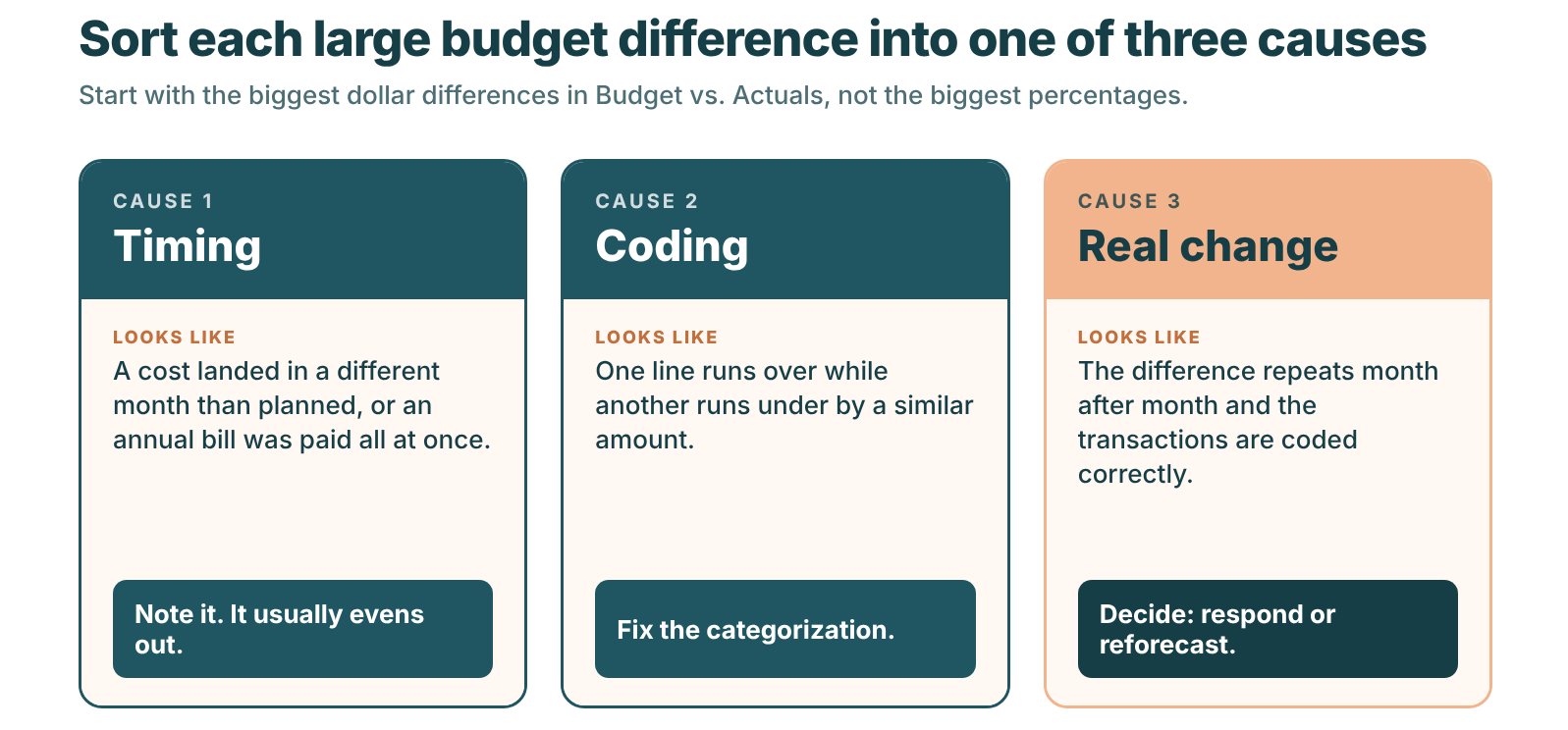
Start with the largest dollar differences, not the largest percentages. Being 40% over on a $200 line matters far less than being 8% over on payroll. For each large difference, sort it into one of three causes:
- Timing. An expense posted in a different month than you budgeted it, or an annual cost was spread evenly in the budget but paid all at once. These usually even out over the year. Note them and move on.
- Coding. A transaction landed in a different account than the budget expected, so one line looks over and another looks under. The budget was fine; the categorization needs fixing.
- A real change. Spending or revenue moved. This is the variance that needs a decision: respond in the business, or accept the change and update the plan.
When you do need to update the plan, leave the original budget alone. Duplicate it from the Budgets list, give the copy a clear name such as “Reforecast, June,” and change the remaining months there. Keeping the original lets you see at year-end how far the plan moved, and since the report shows one budget at a time, you can measure against either version.
The following is an example to illustrate how this works in practice — not a specific client case study.
A commercial cleaning company with 14 employees builds its first QuickBooks budget from last year’s actuals. At the April review, the owner sees that cleaning supplies have run about 30% over budget for three straight months. Three months in a row rules out timing, so the bookkeeper looks at the transactions behind the line. About half of the overage is two floor machines that were coded to supplies instead of equipment, which is a coding fix. The other half is real: the company’s main supplier raised prices in January. With that known in April, the owner builds the new supply cost into contract renewals starting in May. Without the review, the owner would have found the price increase in the year-end numbers, after eight more months of thinner margins on every contract.
Forecasts and What-If Planning in QuickBooks
Intuit has recently added cash flow forecasting and budget planning tools to QuickBooks as part of Intuit Intelligence. According to Intuit’s release notes, the cash flow forecast is available on QuickBooks Online plans from Free through Advanced, saving a forecast as a budget requires Plus or Advanced, and what-if scenario planning, which models the effect of a price change, a new hire, or a large purchase, is available in Plus and Advanced. Intuit labels Intuit Intelligence as beta and says feature availability varies, so check what appears in your own account, or contact Intuit to understand current scope, before building your planning routine around these tools.
A forecast and a budget answer different questions. A forecast estimates where cash is heading based on your history and bank activity. A budget sets the target you hold the business to. They work well together: a forecast can give you a starting point for the budget, and the budget gives you something to measure the year against. Both depend on clean books. A forecast built from miscategorized history will predict more of the same, which is one reason profitable businesses still run short of cash when nobody is looking forward.
For businesses with several entities, or a finance team that builds the budget together, Intuit Enterprise Suite adds budget tasks, comments on individual cells, and approval workflows, so the people who own each part of the budget can work in the same place.
If Your Company Is on QuickBooks Essentials
Essentials doesn’t include budgets, so a QuickBooks budget isn’t available until you move to Plus or Advanced. That doesn’t mean waiting to plan. Intuit lists its cash flow forecast as available on Essentials, and it can show you where cash is heading over the coming months. A spreadsheet budget can still work if you commit to comparing it against your profit and loss report on a fixed schedule; quarterly is more realistic than monthly when every comparison means exporting and pasting.
Whether to move to Plus is a judgment call that depends on more than budgeting. If the comparison keeps slipping, or you’re also starting to want reporting by location or service line, it’s worth a conversation about which plan fits where the business is heading. Peak Advisers can walk through that with you and handle the change if it makes sense.
Getting Help With the Budget and the Monthly Review
Peak Advisers has been a certified QuickBooks Solution Provider since 2011, and the budgets that hold up through the year usually start with setup work most owners skip: confirming the fiscal year, reshaping the chart of accounts so the budget lines mean something, getting class or location tagging consistent, and building the first budget from cleaned-up actuals instead of last year’s raw numbers.
The monthly review is where many owners want a second set of eyes. Budget preparation and performance monitoring are part of our fractional CFO services, and the work usually starts with the questions in what a fractional CFO does in the first 90 days: what the owner needs to know each month, which numbers answer it, and what the business should do when those numbers move.
Frequently Asked Questions
Can I make a budget in QuickBooks Essentials?
No. Budgets in QuickBooks Online are available in Plus and Advanced, and in Intuit Enterprise Suite. On Essentials, you can use Intuit’s cash flow forecast to see where cash is heading, or keep a spreadsheet budget and compare it to your profit and loss report on a fixed schedule.
How do I compare my budget to actual results in QuickBooks?
Go to your Budgets list, open the dropdown in the Options column next to the budget, and choose Run Budgets vs. Actuals report. The report shows budgeted amounts, actual amounts, the difference, and the percentage of budget used. It shows one budget at a time.
Can I import my Excel budget into QuickBooks Online?
Yes, for profit and loss budgets. Choose Import budget, download the template QuickBooks creates from your chart of accounts, enter your numbers without adding rows, and upload the file (10MB or less). QuickBooks Online Advanced also offers Spreadsheet Sync, which keeps the budget connected to Excel.
Should I change my budget partway through the year?
Keep the original so you can see at year-end how far results moved from the plan. If something real has changed, duplicate the budget, name the copy as a reforecast, and update the remaining months there.
Can I budget by location or department in QuickBooks?
Yes. When you create a profit and loss budget, choose Subdivided budget and select criteria such as Location or Class. The comparison is only as accurate as your tagging, so make sure transactions are consistently assigned a location or class first.
Build the Budget Once, Then Give It Twenty Minutes a Month
A budget that sits in a spreadsheet nobody opens can’t warn you about anything. Built in QuickBooks from cleaned-up numbers and checked every month, it tells you early when costs are moving, when a price needs to change, or when a growth plan is running ahead of the cash to support it.
If you’d like help setting up next year’s QuickBooks budget, cleaning up the chart of accounts behind it, or having someone review the numbers with you each month, schedule a call with Peak Advisers.