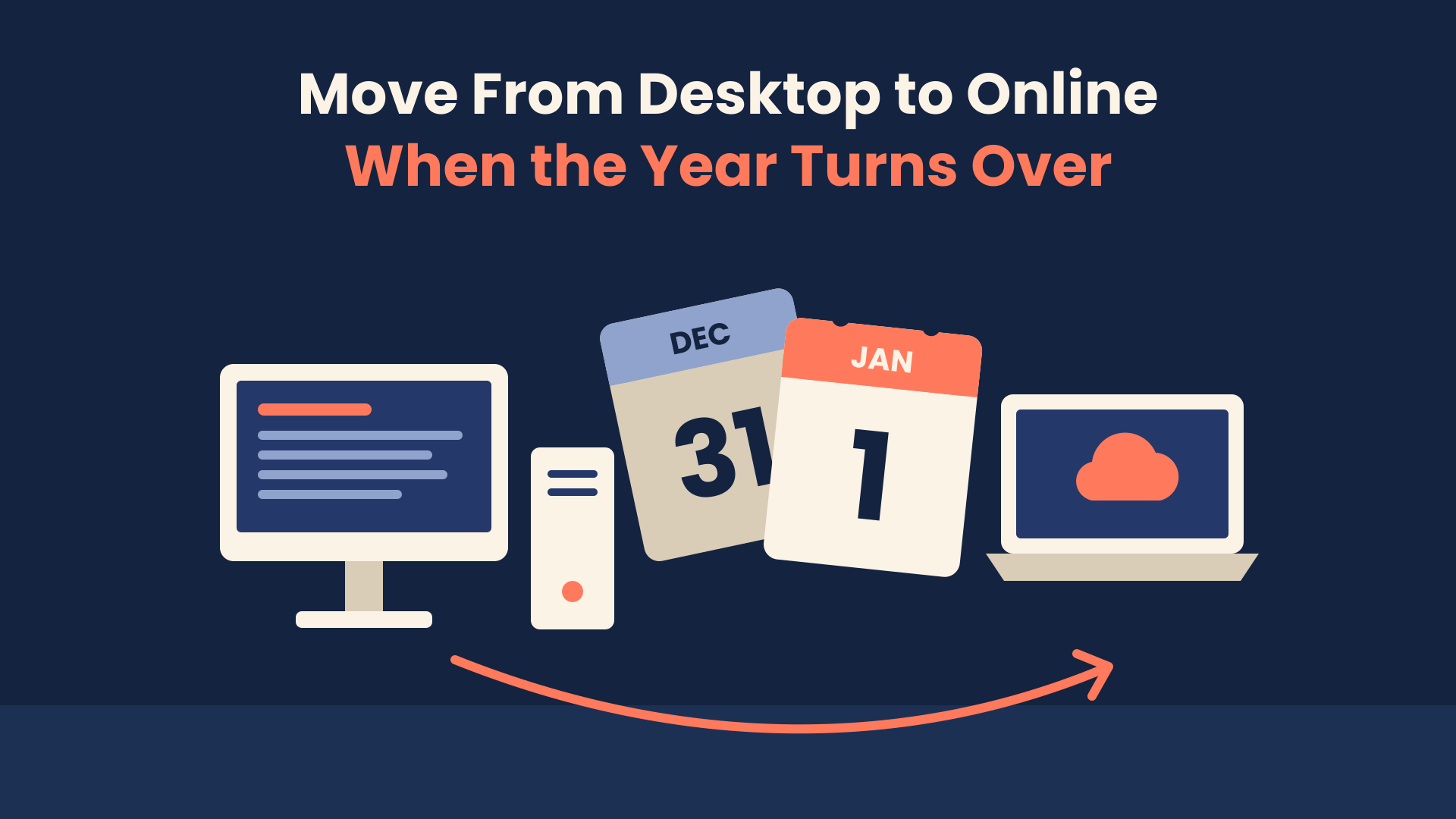
Most owners plan a move from QuickBooks Desktop to Online around the software: which plan, which tool, how long the upload takes. The decision that does the most to protect your numbers is the date. Move in the middle of a year and you carry half a year of payroll, sales tax, inventory, and contractor payments across two systems. Move at the turn of the year and last year’s books close in the system that created them, while the new year starts in one place from its first transaction.
Intuit has stopped selling most new Desktop subscriptions in the U.S., and its recent releases have been adding Desktop-style workflows to QuickBooks Online Advanced. If you’re planning the switch, year-end is the window worth aiming for. Here’s what moves, what changes, what to clean up in Desktop first, and how to choose between Plus and Advanced.
Key Takeaways
- A year-end cutover keeps each tax year’s payroll, 1099, sales tax, and inventory history in one system, which makes reconciling and filing easier.
- Intuit’s tool copies your Desktop file and leaves the original untouched, but some things don’t come across: bank connections and bank rules, past reconciliation reports, the audit trail, price levels, users, and custom form templates.
- Accrual-basis Profit and Loss and Balance Sheet totals should match after the move. Cash-basis reports may not, so compare both.
- Clean up before you migrate. Problems in the Desktop file get copied into QuickBooks Online along with everything else.
- You have 90 days from signing up for QuickBooks Online to import your data (180 if your accountant runs the import), so sign up when your file is ready, not months ahead.
- QuickBooks Online Advanced now includes a guided Desktop migration with a dedicated Implementation Consultant. Plus fits many Pro and Premier users who don’t need that depth.
Why Year-End Is the Cleanest Point to Move From QuickBooks Desktop to Online
Unless you choose to bring only lists and balances, Intuit’s migration tool takes the whole company and copies it into QuickBooks Online, and a few parts of your books change shape on the way. The month you choose decides how much of the current year those changes touch.
Payroll is the clearest example. According to Intuit’s guide to what transfers, this year’s paychecks arrive in QuickBooks Online as regular checks, with the paycheck detail carried as year-to-date totals. Move in June and your W-2s for that year depend on year-to-date figures that came across in a conversion. Move once the last paycheck of the year has run, and the closing year’s payroll stays whole in Desktop while the new payroll year starts from zero online.
The same logic applies elsewhere:
- Inventory. QuickBooks Online recalculates inventory quantity and value using FIFO from your migration date, whether you used FIFO or average cost in Desktop. A year-end move puts that recalculation at the same point as your physical count and your accountant’s year-end adjustments.
- Sales tax. Intuit says some sales tax moves as journal entries, and sales tax payments can land in the wrong filing period. Intuit’s fix is to delete the migrated payments and record them again in the Sales Tax Center. That’s far less work when the last period of the year is already filed.
- 1099s. Vendors you track for 1099s become Contractors in QuickBooks Online, but the 1099 ID field has to be entered again. Keeping the closing year’s contractor payments in one system gives you one clean set of totals to file from.
None of this makes a mid-year move impossible. It makes it more work to reconcile, and the risk sits in the filings your CPA depends on. Peak Advisers isn’t giving tax advice here; where you file the closing year’s W-2s and 1099s is a question to settle with your CPA before you set the date.
Which QuickBooks Desktop Habits and Reports Transfer, and Which Don’t
What surprises most Desktop users is less about missing data and more about familiar tools that now live in a different place or work a little differently. Here’s what Intuit’s migration guide says about the parts owners rely on most.
What comes over intact
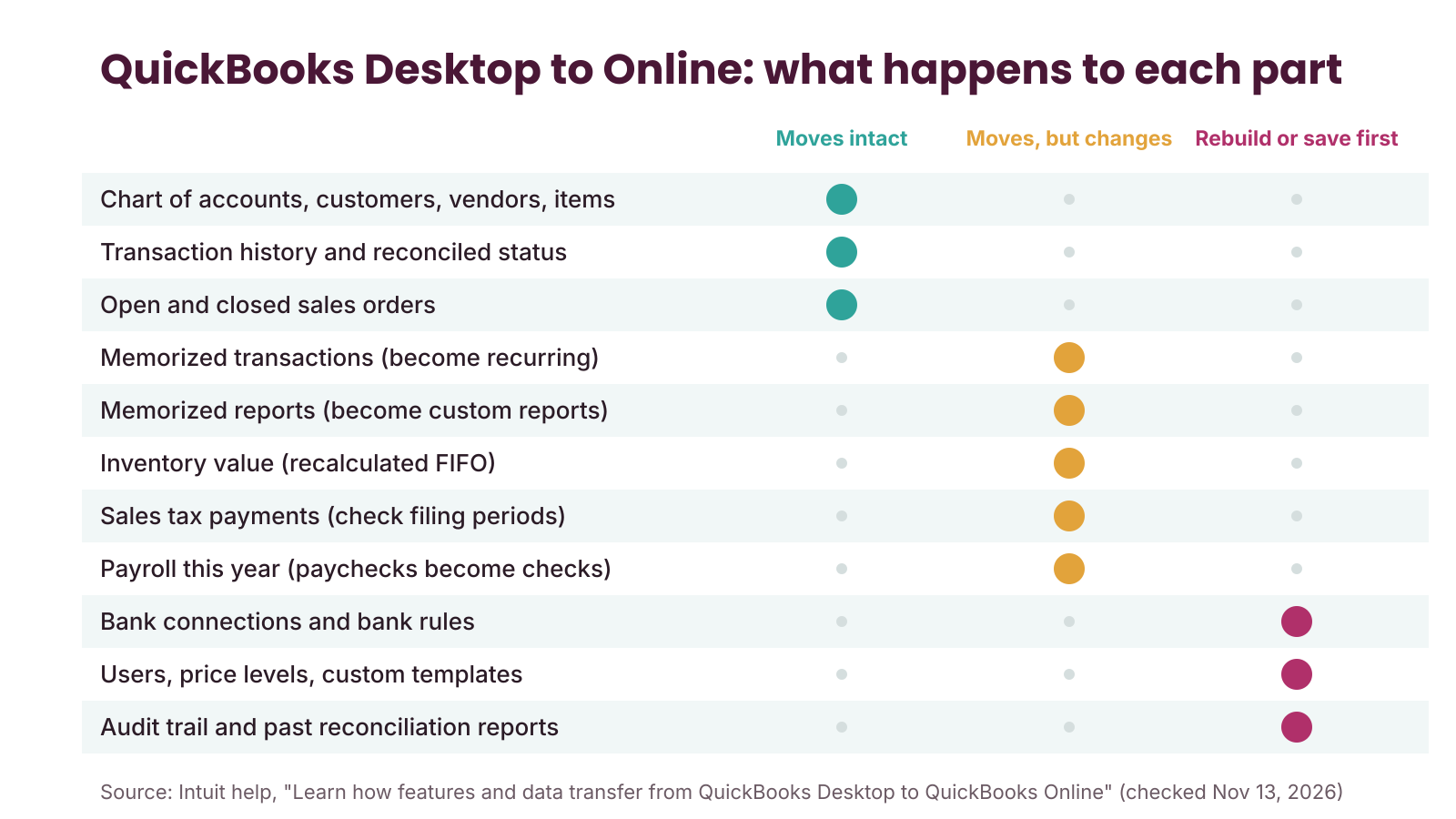
Your chart of accounts, customers, vendors, items, and transaction history move. Reconciled transactions keep their status, so cleared items still show as cleared. Memorized transactions become recurring transactions. Jobs with no sub-jobs become Projects, and other jobs become sub-customers. Open and closed sales orders move along with the purchase orders and invoices created from them, and attachments of 30MB or smaller come across with a report of anything that didn’t.
What moves but changes
- Reports. Intuit says favorite reports move, and memorized and scheduled reports become custom reports. Intuit’s article on moving to QuickBooks Online Advanced says memorized Desktop reports don’t transfer directly and that the Implementation Consultant can help rebuild key views. Plan to check each report you depend on rather than assuming it came across as it was.
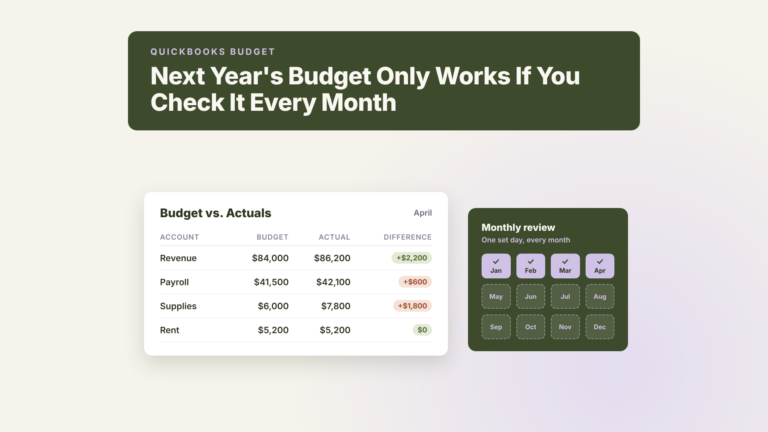
- Budgets. Data from the Profit & Loss Budget Performance report moves and shows up in Budget Overview, but plan to rebuild next year’s budget in QuickBooks Online. Our QuickBooks budget guide walks through how.
- Estimates. Active estimates move as Closed and inactive estimates as Rejected. Progress invoices stay linked to their estimates.
- Purchase orders. They move, but open ones won’t show items as received until you link them to the bill.
What you set up again
- Bank and credit card connections, plus bank rules
- Bank feed transactions you hadn’t categorized
- Users (you invite your team from QuickBooks Online)
- Custom invoice and estimate templates
- Price levels and billing rate levels, which QuickBooks Online doesn’t have
- Units of measure and manufacturer’s part numbers on inventory items
- Customer type, sales rep, credit limit, and job status fields
- Past mileage and Desktop letters
Two things don’t move at all, and you should save them before you switch: the audit trail and your past reconciliation reports. QuickBooks Online starts its own audit log from the day you arrive.
What to Clean Up in Desktop Before You Migrate
Intuit’s tool copies what it finds. If your Desktop file has an unreconciled bank account, a pile of stale receivables, or a customer list full of duplicates, all of it lands in QuickBooks Online, and now you’re cleaning up in a system your team is still learning. The cleanup is cheaper in the file your team already knows.
Intuit’s pre-move checklist covers the technical steps: update Desktop to the latest release, check your file size (Product Information shows Total Targets) and condense the file if it’s over the limit, run Verify and Rebuild Data, make sure the company file is on your own computer rather than a hosting service, save a Sales Tax Liability report, and categorize and reconcile your bank and credit card transactions. Payroll users should run payroll, wait two to three business days, and finish the move at least seven business days before the next payroll date.
The checklist gets the file ready to convert. A year-end cutover also needs the books ready to close:
- Reconcile every bank, credit card, and loan account through December 31. Then save or print each reconciliation report, since they don’t transfer.
- Clear stale receivables and payables. Intuit notes that inactive customers and vendors with an open balance become active in QuickBooks Online. A $40 invoice from three years ago will reappear on your customer list.
- Empty Undeposited Funds. Match every payment to its deposit so the balance reflects money that’s still on its way to the bank.
- Make unused employees inactive. Intuit’s checklist asks you to inactivate employees with no pay history this year.
- Merge duplicates and inactivate unused items, customers, and vendors. A shorter list is easier to check after the move.
- Write down what doesn’t transfer. Screenshot your price levels, custom templates, bank rules, and memorized report list so you can rebuild them on purpose.
- Run your comparison reports. Save the full-year Profit and Loss and Balance Sheet on both accrual and cash basis, plus your A/R and A/P aging. These become your check after the move.
If the file needs more than a light pass, our QuickBooks cleanup guide covers the deeper work, and our QuickBooks year-end guide covers closing the year so the numbers stay put.
A labeled example: the bank rules nobody wrote down
The following is an example to illustrate how this works in practice — not a specific client case study.
A 22-person distributor ran QuickBooks Desktop Premier for nine years and moved to QuickBooks Online Plus in March. The upload went smoothly and the accrual Balance Sheet matched. Two weeks later, the bookkeeper found that the bank feed had stopped sorting itself. In Desktop, about 60 bank rules had coded fuel, freight, and recurring vendor payments automatically, and none of them moved. Nobody had written them down. She spent most of April re-coding transactions by hand while also rebuilding the sales tax payments for the first quarter, which had landed in the wrong period. Had the company moved on January 1 with its rules documented, the rebuild would have taken an afternoon, and the first quarter’s sales tax would have started clean in the new system.
Plus or Advanced: Which QuickBooks Online Plan Fits a Desktop Company
Most Desktop Pro and Premier businesses fit QuickBooks Online, according to Intuit’s switching guide. The question is how much of what you did in Desktop you need on day one.
QuickBooks Online Plus covers up to 5 users, inventory tracking, budgets, project profitability, and up to 40 classes and locations, per Intuit’s pricing page. For a Pro Plus file (3 users) or a Premier Plus file (5 users) that tracks jobs and stock without heavy reporting, Plus is often the right starting point. List price is $140 a month (Intuit pricing page, verified November 13, 2026).
QuickBooks Online Advanced covers up to 25 users, unlimited classes and locations, and Spreadsheet Sync with Excel. List price is $340 a month (verified November 13, 2026). Intuit’s latest Advanced release brings in several Desktop workflows, including the Open Purchase Orders by Job and Job Costs by Vendor reports and multiple shipping addresses per customer on invoices. Others, including the Item Profitability report, labor costing by service item, and multi-level job hierarchies, are marked as coming soon. If your workflow depends on one of those, contact Intuit to confirm current scope and timing before you set your cutover date.
Through Peak Advisers, businesses moving from QuickBooks Desktop to QuickBooks Online Advanced get 50% off Advanced for their first 12 months, and businesses new to QuickBooks Online get 30% off Plus for their first 12 months (Peak Advisers pricing, verified November 13, 2026).
Advanced also comes with a guided migration. Intuit pairs businesses moving from Desktop with a dedicated Implementation Consultant for up to 60 days. Intuit says the consultant calls within two business days of subscribing, works through at least four live sessions, and stays through your first close, with migrations typically completed within 30 days.
A Desktop Enterprise company with more than 25 users, several entities, or deep inventory needs is a different conversation. Our Intuit Enterprise Suite migration guide covers that path, and our software comparison lays out where QuickBooks Online, Desktop Enterprise, and Intuit Enterprise Suite each fit.
When Staying on Desktop a While Longer Makes Sense
Treat year-end as a target you plan toward, with room to move it if the file or the fit isn’t ready. Intuit’s stop-sell applies to new subscriptions: existing Pro Plus, Premier Plus, Mac Plus, and Desktop Payroll subscribers can keep renewing, Intuit says it continues to provide security updates, product updates, and support for current subscriptions, and Desktop Enterprise is still sold. Intuit’s stop-sell page does encourage businesses on standalone Pro, Premier, or Mac versions 2021 and older to move to QuickBooks Online.
Moving later can be the better call when:
- Your pricing depends on Desktop price levels and you haven’t decided how to handle customer-specific pricing online.
- You build assemblies, track lot or serial numbers, or sell in units of measure. Intuit’s guide flags these, along with Advanced Pricing, IIF imports, and heavy custom form fields, as reasons to take a closer look first.
- A Desktop workflow you rely on is still marked as coming soon in Advanced.
- The file needs a real cleanup that can’t finish before the year closes.
In those cases, a later date is part of good planning. Bring us the list of what you depend on in Desktop, and we’ll map each item to how it works online, or help you set a cutover date at the end of a quarter when the fit is clear.
How Peak Advisers Handles a Desktop-to-Online Move
As a certified QuickBooks Solution Provider since 2011, Peak Advisers does the parts of a migration that Intuit’s tool can’t decide for you. We review the Desktop file, decide with you whether to bring all your data or only lists and balances, set the cutover date around payroll and your CPA’s year-end work, and handle the cleanup before anything is copied.
After the move, we compare the accrual and cash reports against your Desktop figures, rebuild bank rules, templates, and the reports your team uses, set up users and permissions, and train your team on the daily workflows that changed. If you choose Advanced, we work alongside Intuit’s Implementation Consultant so the finished setup matches how your business reports. Our QuickBooks setup service explains how we approach setups on a deadline, and the QuickBooks Online page covers plans and our QSP pricing.
Frequently Asked Questions
How long does it take to move from QuickBooks Desktop to Online?
The upload depends on file size, and Intuit emails you when the data is ready. The full move, including cleanup, report checks, and rebuilding what doesn’t transfer, usually takes longer. For Advanced, Intuit says guided migrations are typically completed within 30 days. Peak Advisers generally works with clients more quickly than that when completing Desktop to QuickBooks Online migrations.
Is there a deadline to import my QuickBooks Desktop file?
Yes. Intuit gives you 90 days from signing up for QuickBooks Online to import your data, or 180 days if your accountant runs the import (Intuit help, checked November 13, 2026). Older guides cite 60 days, so check Intuit’s current page before you sign up.
Will my QuickBooks Desktop data be deleted when I move to Online?
No. Intuit’s tool copies your data and doesn’t change the original file. Keep Desktop until you’ve confirmed everything transferred. The import does replace any data already in the QuickBooks Online company, so don’t enter transactions online before the move.
Do my reports match after moving from QuickBooks Desktop to Online?
Intuit says accrual-basis Profit and Loss and Balance Sheet totals match, and cash-basis reports may differ. Compare both against the reports you saved in Desktop before the move.
Can I still buy or renew QuickBooks Desktop?
Intuit stopped selling new Desktop Pro Plus, Premier Plus, Mac Plus, and Enhanced Payroll subscriptions in the U.S. after September 30, 2024. Existing subscribers can keep renewing, and Desktop Enterprise is still available to new and existing customers.
Should I move to QuickBooks Online Plus or Advanced?
Plus fits many Pro and Premier companies with up to 5 users and moderate inventory and job tracking. Advanced fits companies that need more users, unlimited classes and locations, the Desktop-style job reports, or a guided migration with an Implementation Consultant.
Start the New Year in One System
A move from QuickBooks Desktop to Online done at year-end gives you a clean first day: last year closed and reconciled where it was recorded, and a new year whose payroll, sales tax, and inventory start in the system you’ll use from here on. The weeks before December 31 are when the cleanup, the reports, and the cutover plan come together.
If you’re planning the switch, contact Peak Advisers and we’ll review your Desktop file, recommend a plan, and set a cutover date that works for your payroll and your CPA. Ready to choose a plan now? Get QuickBooks Online through Peak Advisers.