Most year-end inventory differences trace back to product that moved on a different day than the books say it did, rather than to product that went missing. A shipment that arrived December 30 sits on the shelf while its bill waits until January. A counter sale goes into QuickBooks as a lump sales receipt with no items on it. A case of twelve gets counted as one. When the QuickBooks inventory count and the shelf disagree on December 31, the cutoff usually explains more of the gap than shrinkage does.
That matters because the year-end count sets the number everyone works from next. It becomes the inventory balance on the Balance Sheet your CPA uses for the return, the starting quantity for every reorder in January, and the cost base under next year’s gross margin. A count done carefully but recorded against a loose cutoff carries the error forward for twelve months.
Key Takeaways
- The year-end QuickBooks inventory count is where timing problems from the whole year surface at once: receiving dated by bill instead of arrival, sales entered without items, and units counted differently than QuickBooks tracks them.
- Set the cutoff before anyone counts. Every receipt and every sale on or before the count date needs to be in QuickBooks, with items, dated correctly.
- QuickBooks Online Plus and Advanced include an Inventory Counts tool. Finalizing a count creates an Inventory Quantity Adjustment, which posts to Inventory Asset and to Inventory Shrinkage under Cost of Goods Sold.
- Check the date on every adjustment the count creates. A December 31 count recorded with a January date lands in the wrong year.
- Valuation method, write-downs of obsolete stock, and tax treatment are CPA questions. Get QuickBooks set up to report cleanly, then take those decisions to your CPA.
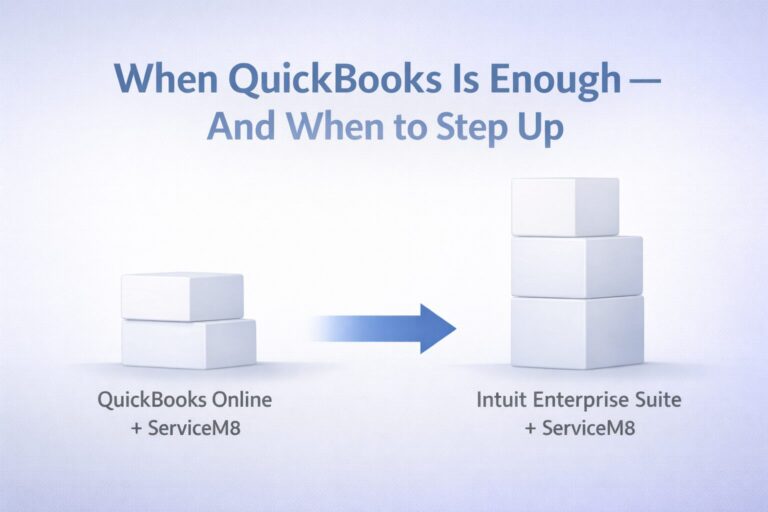
- Businesses that need lot or serial tracking, stock in several locations, or cycle counts through the year can run counts in SOS Inventory, which posts its adjustments to QuickBooks Online.
Why the Year-End QuickBooks Inventory Count Is Where the Shelf and the Books Split
During the year, small timing gaps cancel each other out or go unnoticed. A bill entered three days late in March gets caught up by April. A sales receipt without items understates cost of goods by a little, and nobody checks the item report. The year-end count is the one moment when every quantity is compared at once, on one date, and that date also closes the tax year.
Three things make the year-end count harder than a monthly true-up. First, the count date is fixed and the paperwork is not. December is a heavy receiving month for many product businesses, and vendor bills for late-December deliveries often arrive in January. Second, the people who receive and sell product are busy, and shortcuts pile up in exactly the weeks before the count. Third, the result goes straight into the year-end financials, so a difference that would have been a footnote in May becomes a number your CPA has to ask about.
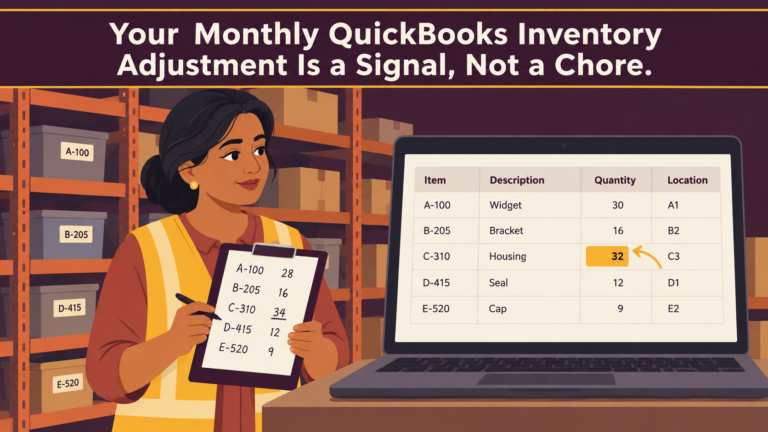
If inventory adjustments repeat on the same items every month, that pattern is a separate signal, covered in Your Monthly QuickBooks Inventory Adjustment Is a Signal, Not a Chore. The year-end count is the annual version of that check, with the added weight of the cutoff and the close.
Before the Count: Set the Cutoff in QuickBooks First
A QuickBooks inventory count is only as good as the transactions it gets compared against. Before anyone picks up a clipboard, get QuickBooks current through the count date.
Pick the count date and time. For most calendar-year businesses that’s the close of business December 31, or the first morning in January before anything ships. Write it down and tell everyone who receives or sells product.
Enter every receipt that arrived on or before the count date. Product on the shelf needs a matching item receipt or bill in QuickBooks dated when it arrived, even if the vendor’s bill hasn’t shown up yet. When the vendor’s bill hasn’t arrived, QuickBooks Online lets you record an item receipt, which increases inventory and accounts payable on the day the product came in. Intuit notes that once item receipts are turned on, they can’t be turned off (Intuit: Receive inventory with an Item Receipt). The reverse matters too: product that’s billed but still in transit isn’t on your shelf, so decide with your CPA how in-transit goods are handled before the count.
Get every sale on or before the count date into QuickBooks with items. Invoices and sales receipts reduce quantity on hand only when the inventory item is on the line. A sale posted straight to an income account, or a sales channel that sends one summary entry per day without item detail, leaves QuickBooks showing stock that has already left the building.
Separate what’s on the shelf but isn’t yours, and what’s yours but isn’t on the shelf. Customer-owned goods waiting for pickup, consigned stock, product at a job site or on a service truck, and returns waiting for inspection all need a decision before the count, not after.
Know which unit QuickBooks counts in. If an item is set up by the each and the warehouse thinks in cases, the count sheet needs to say which. It’s an easy mismatch to miss, and an easy one to prevent.
Print or prepare the count list. In QuickBooks Online, the Physical Inventory Worksheet (Reports > Standard reports, in the Sales and customers group) lists inventory items with space to enter your physical count. To compare quantities as of a specific date, run the Inventory Valuation Summary for that date; it shows quantity on hand, total value, and average cost for each item (Intuit: Use reports to see your sales and inventory status).
How to Run a QuickBooks Inventory Count So the Numbers Hold Up
The count itself is a short, intense job, and most of what goes wrong is organizational.
Stop or track movement during the count. The cleanest count happens when nothing is received or shipped. If you can’t stop, tag anything that moves during the count and enter it with a time so it can be placed on the right side of the cutoff.
Count by location, then by item. Work shelf by shelf, aisle by aisle, so nothing is counted twice and nothing is skipped. Mark each area as finished.
Use two people for high-value items. One counts, one records, and they switch for a spot check. A second count on the items that carry most of your inventory dollars catches far more than a second count on everything.
Count without the QuickBooks quantity in front of you. When the counter can see the expected number, the count drifts toward it. Leave the quantity column off the sheet the counters use, and compare afterward.
Count damaged and obsolete stock separately. Record it, set it aside, and note it on the sheet. Whether it gets written down, and by how much, is a decision for you and your CPA; the count’s job is to put it on paper.
Recording the Count in QuickBooks Online
QuickBooks Online Plus and Advanced give you two ways to get the count into the books. Both end in the same transaction.
Use Inventory Counts in QuickBooks Online
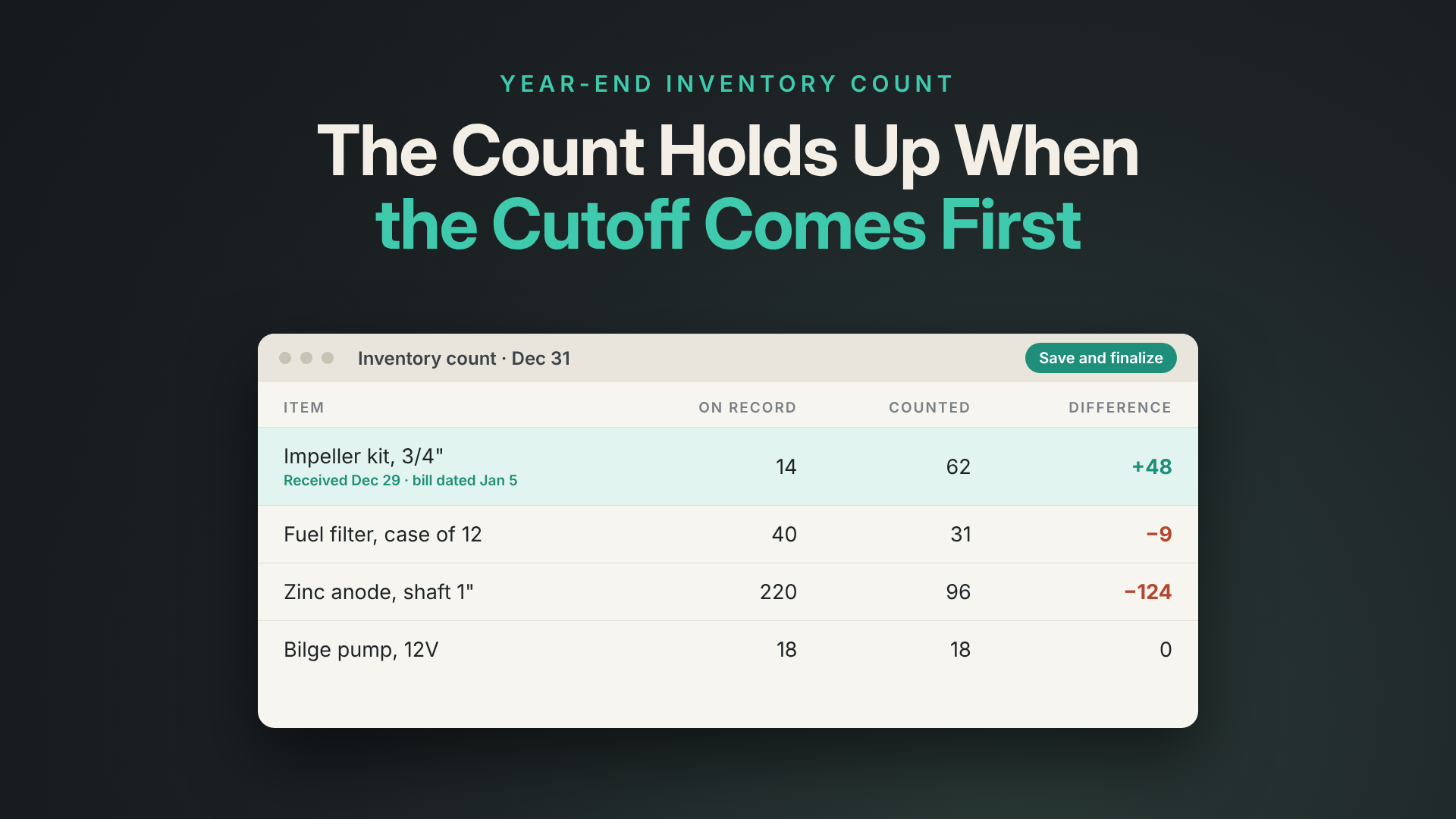
Intuit’s Inventory Counts tool lets you set up a count for all products or a subset, enter counts as you go, save and come back, and finalize when you’re done. Go to Products & services (under Sales & Get Paid in the All apps menu), select More, then Inventory Counts, and choose New inventory count. Enter counted quantities in the New Quantity column; QuickBooks calculates the difference from the quantity on record. When you select Save and Finalize, QuickBooks creates an Inventory Quantity Adjustment to record the change in your books (Intuit: Create an inventory count in QuickBooks Online).
Intuit’s article doesn’t say what date or account that adjustment uses. Open it after you finalize and confirm both before you close the year.
Enter an Inventory Quantity Adjustment Directly
You can also record the count yourself. Select + Create, then Inventory qty adjustment, or use Batch actions in Products and services to adjust several items at once. Enter the adjustment date, choose the inventory adjustment account, and for each item enter either the new quantity or the change in quantity. Use the Memo field to say what the adjustment is (Intuit: Adjust inventory quantity on hand in QuickBooks Online).
The Account, the Date, and the Memo
The account. When you save an inventory quantity adjustment, QuickBooks Online records it to your Inventory Asset account and to Cost of Goods Sold, under Inventory Shrinkage (Intuit, same article). A large year-end adjustment therefore moves gross margin for December, and for the year. If your CPA prefers a different account for the year-end count, set that up before you record it.
The date. Date the adjustment as of the count, not the day someone typed it in. A count taken at the close of business December 31 and entered January 6 still belongs on December 31. If the books are already locked for the year, a December 31 adjustment needs the closing date opened first, and that’s worth coordinating with your CPA. The closing steps are in QuickBooks Year-End: Close the Books So Last Year’s Numbers Stay Put.
The memo. “Year-end physical count, December 31” plus a note on anything unusual tells your CPA, and you next December, what happened. Intuit warns that editing inventory adjustment entries can greatly affect your accounting and suggests checking with your accountant first, so get the adjustment right the first time.
What the Differences Usually Mean
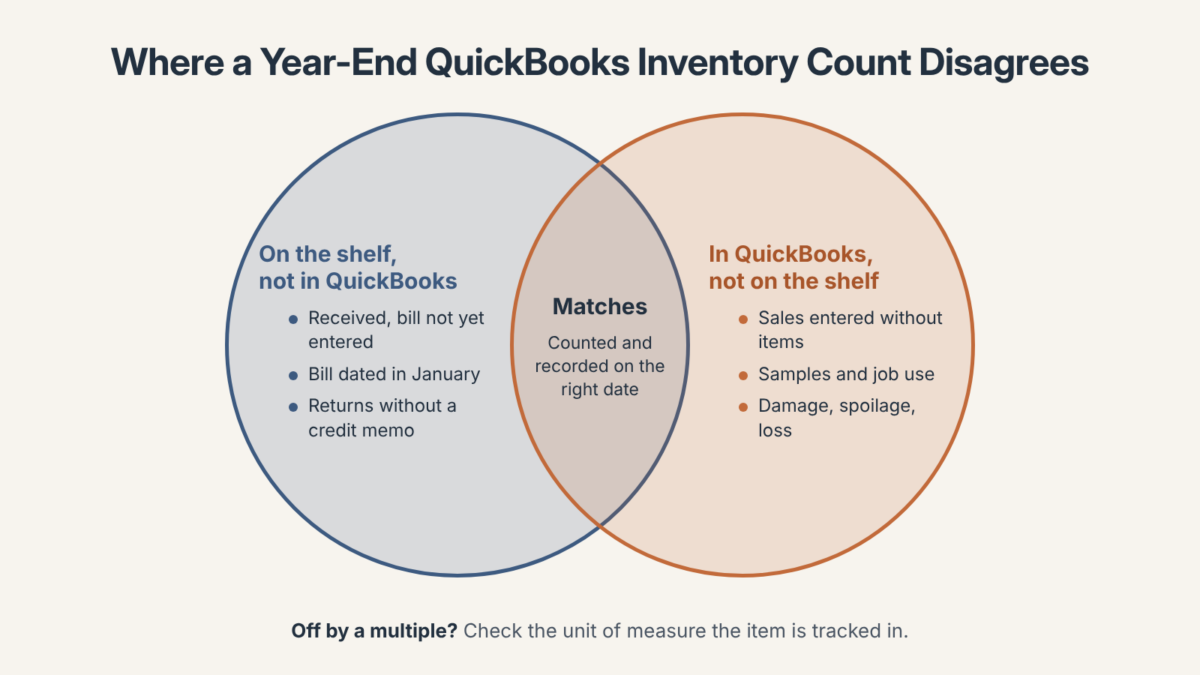
Before you accept an adjustment, trace the biggest differences. A difference you can explain is often a missing transaction, not a loss, and entering that transaction is more accurate than adjusting it away.
Shelf higher than QuickBooks. Usually receiving. Product arrived and the bill or item receipt hasn’t been entered, or it was entered with a January bill date. Customer returns put back on the shelf without a credit memo show up the same way.
QuickBooks higher than the shelf. Usually sales. Product left on a sale that went into QuickBooks without the item, through a summary deposit, or through a channel that doesn’t send item detail. Samples, warranty replacements, and product used on jobs without a transaction land here too. What’s left after those is real loss: damage, spoilage, or theft.
Off by a multiple. Twelve times too many, or a twelfth as many, almost always means a unit-of-measure mismatch between how the item is set up and how it was counted. Intuit lists units of measure conversion among the inventory capabilities of QuickBooks Online Advanced (Intuit: QuickBooks Online Advanced for manufacturing). If you moved from QuickBooks Desktop, note that Desktop units of measure don’t transfer to QuickBooks Online.
Quantity right, value wrong. The count fixes quantity. The dollar value of the adjustment comes from the item’s cost in QuickBooks, so an item set up with a wrong starting cost produces a wrong adjustment value. QuickBooks Online values inventory using FIFO or moving average cost, a method you choose once that can’t be changed later; if items were created before a method was chosen, QuickBooks defaults to FIFO (Intuit: What is FIFO and how is it used for inventory cost accounting?). Businesses that moved from Desktop also had inventory recalculated FIFO from the migration date, which is covered in The Cleanest Move From QuickBooks Desktop to Online Starts on January 1.
A Year-End Count, Traced
The following is anexample to illustrate how this works in practice — not a specific client case study.
A marine parts distributor finishes its QuickBooks inventory count on December 31 and finds QuickBooks $18,400 higher than the shelf in total, with a handful of items wildly off in both directions. The owner’s first reaction is to post the adjustment and move on.
Tracing the top twenty items tells a different story. A container of impellers arrived December 29, and its bill was entered January 5 with a January date, so the shelf is higher than QuickBooks on those items. Counter sales for the last two weeks of December went in as daily sales receipts to an income account, with no items, so QuickBooks still shows hundreds of filters and zincs that sold. And one fuel filter is stocked by the case of twelve in QuickBooks but was counted by the each.
Once the receipt is redated, the counter sales are re-entered with items, and the filter count is converted to cases, the remaining adjustment is a few hundred dollars of damaged stock. The year-end Balance Sheet and the December margin both come out close to right, and the January reorders start from real quantities.
Valuation and Tax: Get the Setup Right, Then Ask Your CPA
The year-end count feeds directly into numbers that matter for taxes: ending inventory, cost of goods sold, and any write-down of obsolete or damaged stock. Peak Advisers isn’t giving tax advice here. Our job is to make sure QuickBooks reports inventory the way your CPA expects: the right costing method set up at the start, adjustments dated in the right year, damaged stock recorded clearly, and a count file your CPA can tie to the Balance Sheet.
Take these questions to your CPA before or right after the count: how obsolete or damaged inventory should be valued, whether any write-down belongs in this year, how in-transit and consigned goods should be treated, and whether your inventory method fits your tax situation. Intuit’s own setup guidance tells businesses moving from average costing to FIFO to let the IRS know about the switch, which is a good example of a setup choice with a tax consequence (Intuit: Set up and track your inventory in QuickBooks Online).
Which QuickBooks Online Plan Includes Inventory
Inventory tracking is included in QuickBooks Online Plus and QuickBooks Online Advanced. Businesses on Simple Start or Essentials can buy Intuit’s inventory add-on or upgrade (Intuit: Add inventory tracking to your subscription). Intuit’s Inventory Counts article covers Plus and Advanced.
Plus covers the core of a year-end count: quantity on hand, the Inventory Counts tool, inventory quantity adjustments, and the Physical Inventory Worksheet and inventory valuation reports.
Advanced adds depth that shows up at count time: units of measure conversion and more inventory valuation options. Intuit’s fall 2026 release for Advanced also describes inventory value adjustments for moving-average items and new stock status and aging reports, and notes that feature availability varies by product and that not every feature was available at launch (Intuit: What’s new in QuickBooks Online Advanced). Contact Intuit, or talk with us, to confirm which of these are live in your file before you build your year-end process around them.
List prices are $140 a month for Plus and $340 a month for Advanced. Through Peak Advisers, businesses new to QuickBooks Online get 30% off Plus for their first 12 months, and businesses moving from QuickBooks Desktop to QuickBooks Online Advanced get 50% off Advanced for their first 12 months (Intuit list prices and Peak Advisers pricing verified November 13, 2026). Plan details are on our QuickBooks Online page.
Where SOS Inventory Fits for Lot, Serial, Location, and Cycle Counts
A once-a-year count in QuickBooks Online works well when stock sits in one place and items don’t need to be traced by batch. It gets harder when the business needs to know which lot went to which customer, how much is in each of three locations, or wants to count a slice of inventory every week instead of everything once a year.
SOS Inventory is a cloud inventory, order, and manufacturing application that connects to QuickBooks Online. QuickBooks stays the accounting system, and SOS handles the operational detail, including counts:
- Counts by location. SOS’s iOS app runs a physical inventory for a selected location, with an “as of” date and time, barcode lookup, and the ability to stop and resume a partly finished count (SOS Inventory: Conducting physical inventory counts with the iOS app).
- Cycle counts. SOS treats a cycle count as a partial physical inventory, with the business choosing which items to count (SOS Inventory: Adjustments and the Adjustments list). Its pricing page lists cycle counting on all three plans (SOS Inventory pricing).
- Lot and serial tracking and multiple locations. SOS tracks items by lot or serial number from purchase to sale, and its Plus and Pro plans include serial and lot tracking, unlimited locations, and barcoding (same pricing page).
- Adjustments that post to QuickBooks. An adjustment in SOS creates a journal entry in QuickBooks Online that affects the item’s asset account and the account selected on the adjustment; SOS notes that Inventory Shrinkage is the most common choice (SOS Inventory: Adjustment transaction interaction).
There’s a setup decision attached. For SOS to manage inventory, SOS requires that Track inventory quantity on hand be turned off in QuickBooks Online (SOS Inventory: QuickBooks Online integration and connection overview), and SOS tells customers with existing quantity tracking to contact SOS Support before connecting. Entries SOS sends to QuickBooks shouldn’t be edited there, because changes don’t sync back. That’s design work to do before go-live, not during a year-end count. More on how we implement it is on our SOS Inventory page.
When the Count Isn’t the First Thing to Fix
Sometimes the count shows almost every item off, in both directions, by amounts nobody can trace. That usually means the problem started long before December: starting quantities or costs entered wrong when inventory tracking was turned on, duplicate items for the same product, or stock set up as non-inventory. Posting a big adjustment on top of that resets the quantities but leaves the setup that will drift again by spring.
In that case, the better move is to record the count as the reliable quantity, then fix the item list and receiving and sales habits before you add anything new. QuickBooks Cleanup: The Complete Guide for Business Owners explains how that work goes. If you’re not sure which situation you’re in, that’s exactly the conversation to have with us before the count, while there’s still time to set the cutoff.
How Peak Advisers Works Through a Year-End Inventory Count
We start before the count date. We review open purchase orders, receiving entered in the last few weeks, sales channels that post without items, and how each high-value item is set up, so the cutoff is clean before anyone counts. After the count, we trace the largest differences to their transactions, record what’s missing, and date the final adjustment in the right year. Then we hand your CPA a Balance Sheet and an inventory valuation that tie to each other.
For businesses that need counts by location, lot and serial traceability, or cycle counts through the year, we design and implement SOS Inventory alongside QuickBooks Online, including the item list, sync rules, and which system owns which transaction.
Frequently Asked Questions
Does QuickBooks Online have a physical inventory count feature?
Yes. For a QuickBooks inventory count, QuickBooks Online Plus and Advanced include Inventory Counts, found under More in Products & services. You can count all products or a subset, save and resume, and finalize the count, which creates an Inventory Quantity Adjustment. The Physical Inventory Worksheet report is also available for printed count sheets.
What date should the year-end inventory adjustment use?
The date of the count. A count taken at the close of business December 31 belongs on December 31, even if it’s entered in January. Check the date on any adjustment QuickBooks creates when you finalize an inventory count, since Intuit’s article doesn’t state it.
Which account does an inventory quantity adjustment post to in QuickBooks Online?
QuickBooks Online records the adjustment to your Inventory Asset account and to Cost of Goods Sold under Inventory Shrinkage. Ask your CPA whether a different account should be used for the year-end count before you record it.
Can we count in early January instead of on December 31?
Many businesses do, because nothing ships on the holiday. The count then needs to be rolled back to December 31 by accounting for anything received or sold between the count and year-end. Agree on the approach with your CPA ahead of time.
Which QuickBooks Online plans include inventory?
QuickBooks Online Plus and Advanced include inventory tracking. Simple Start and Essentials can add Intuit’s inventory add-on or upgrade. Advanced adds units of measure conversion and more valuation options.
Do I need SOS Inventory for cycle counts?
You can count a subset of products with Inventory Counts in QuickBooks Online. SOS Inventory adds counts by location, lot and serial tracking, and barcode lookup in its iOS app, and lists cycle counting on all of its plans. It fits businesses whose stock sits in several places or needs to be traced by batch.
Should obsolete inventory be written down during the year-end count?
Count it and record it separately. Whether to write it down, by how much, and in which year are decisions for your CPA. Peak Advisers can set up QuickBooks to record whatever your CPA decides.
Get the Count Right Before the Year Closes
A year-end QuickBooks inventory count that matches the shelf sets up everything that follows: an accurate Balance Sheet for your CPA, reorders that start from real quantities, and a gross margin you can compare month to month next year. Most of the work happens before the count, in the cutoff.
If you want help setting the cutoff, tracing the differences after the count, or deciding whether SOS Inventory belongs in your process, talk with Peak Advisers. Schedule a call, read more about SOS Inventory, or see our QuickBooks Online plans and pricing.